# Instructions for Use - App
# 3.9.1
Instructions For Use are supplied electronically, paper format is available on request at support@fibricheck.com
# 1. PRODUCT DESCRIPTION
FibriCheck is a software that determines heart rhythm conditions, with a primary focus on the detection of Atrial Fibrillation with a sensitivity and specificity of 98,68% and 99,60%, respectively.
The FibriCheck application is intended to record, display, store and transmit photoplethysmogram (PPG) data. Recordings are performed by making contact between the skin and camera of a mobile device or by skin and sensor of a wearable device. This way, volumetric changes can be detected.
In addition to heart rhythm measurements, the FibriCheck Mobile Application also provides non-medical device features that can be used to store cardiovascular parameters, specifically:
- Systolic and diastolic blood pressure values, which are classified according to the ESC guidelines for hypertension
- Weight and height, which are used to calculate a body mass index (BMI) value.
The sole purpose of the FibriCheck Portal (web application) is to display data captured by or entered into the FibriCheck Mobile Application. Professional users can use the Portal to manage patients and review FibriCheck data, including PPG-based heart rhythm measurements and manually entered blood pressure, weight, height and BMI information.
# 1.1 Indications for use
FibriCheck is indicated for self-testing by patients who have been diagnosed with, or are susceptible to developing, atrial fibrillation and who would like to monitor and record their heart rhythms on an intermittent basis.
# 1.2 Contraindications
The FibriCheck Application is not intended to be used by all individuals:
- Individuals under the age of 18.
- Individuals with conditions causing tremors or the inability to hold their hand still for at least 60 seconds. A measurement cannot be recorded or processed accurately in case of excessive motion.
- Individuals with cardiac pacemakers, ICDs, or other implantable electronic devices that control the natural heart rhythm.
- Individuals with reduced blood flow or very thick or hard skin on their fingertips due to, for example, perniosis or callus formation. This will hinder the FibriCheck Application’s ability to measure blood volume changes in tiny vessels.
# 1.3 Warnings
- The FibriCheck Application cannot be used to detect heart attacks or ischemic heart conditions. If you experience chest pain, pressure, tightness, or what you think is a heart attack, call emergency services.
- A complete diagnosis cannot be made based on the results in the FibriCheck Application alone. Consult with your physician before making any medical decision, including altering your medication or treatment.
- The FibriCheck Application does not detect or register all changes in heart rate, heart rhythm or heart waveform.
- Interpretations shown in the FibriCheck Application are potential findings, not a complete diagnosis of cardiac conditions. All interpretations should be reviewed by a healthcare professional for clinical decision making.
- Do not perform measurements while driving or during physical activity.
- Do not perform measurements when the camera lens is unclean or broken.
- There is no guarantee that you are not experiencing an arrhythmia or other health condition when a measurement is labeled 'regular' in the FibriCheck Mobile Application or when you are feeling symptoms.
- Do not continue using the FibriCheck Application when you experience discomfort caused by the camera flash. Try to avoid coverage of the flashlight with your finger.
- Measurements cannot be sent to your physician without internet connection.
# 1.4 Guidelines for use
The FibriCheck Application can be used on a compatible smartphone device with sufficient battery and mobile network or wifi connection. If there is no connection, a measurement can still be performed but the analysis will only be available after the connection has been restored and the measurement has been sent to the cloud.
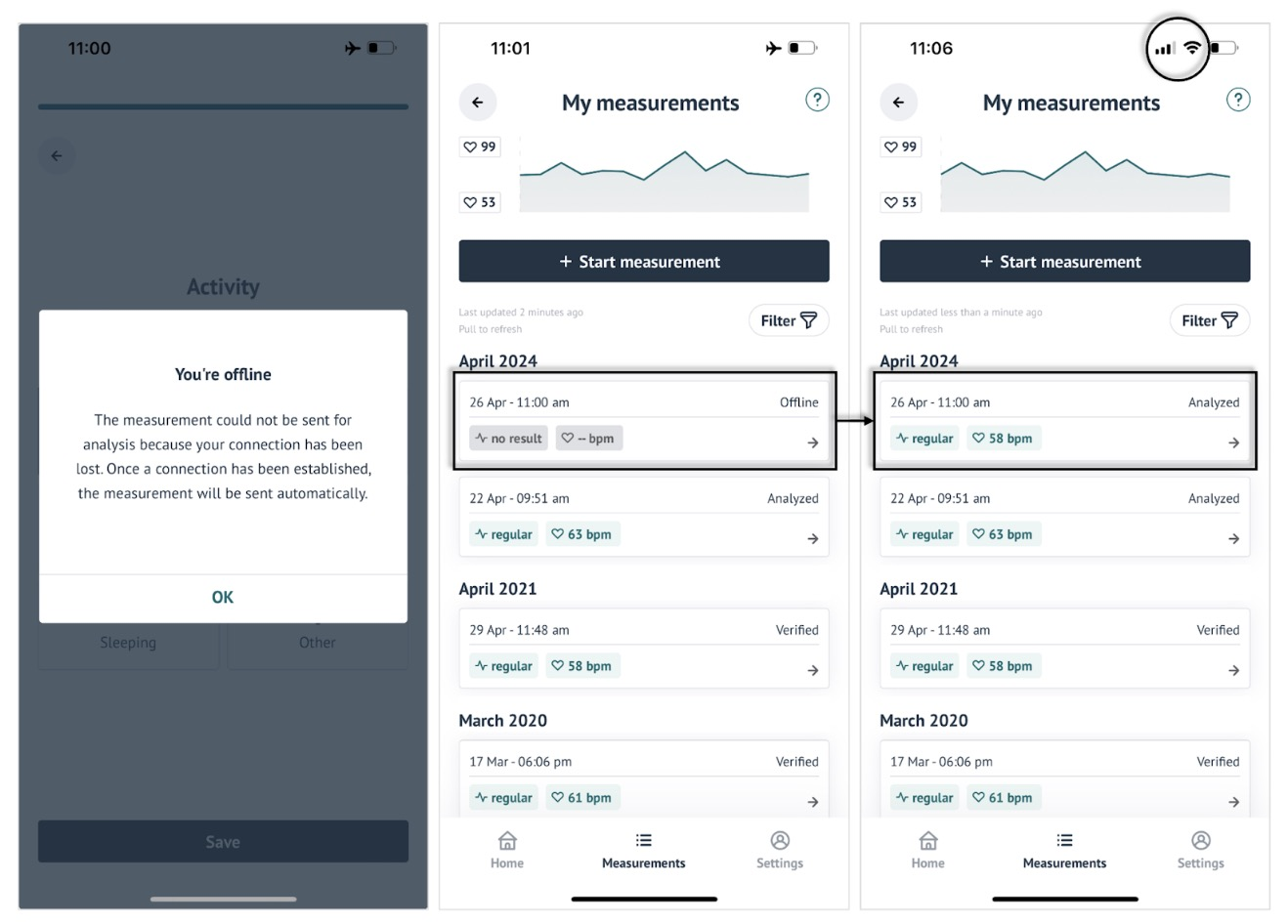
Figure 1: The analysis of a measurement will only be available after internet connection has been restored.
# 2. COMPATIBILITY
The minimum system requirements for the FibriCheck Application are an Android operating system with minimal software version Android 7.0 or an iOS operating system with minimal software version iOS 15.0.
FibriCheck users will be notified when an update is available. The update of the FibriCheck Application can be found in the App Store/ Play Store.
NOTE: FibriCheck performs proactive device monitoring. If you cannot find the application in the App Store / Play Store, this is preventively removed.
# 3. EDUCATION
# 3.1 What is FibriCheck?
FibriCheck is a smartphone application intended for self-testing for people diagnosed with or susceptible to developing atrial fibrillation and who would like to monitor their rhythm intermittently.
# 3.2 How does the FibriCheck Application work?
FibriCheck is standalone medical device software (SaMD) intended to determine heart rhythm conditions, with a primary focus on detecting patterns suggestive of atrial fibrillation (AF), based on photoplethysmography (PPG) signals acquired by compatible host devices (e.g., smartphone camera/flash or wearable optical sensors).
# 3.3 What is atrial fibrillation?
AFib or atrial fibrillation is an irregular and often rapid heart rhythm. The condition also increases the risk of stroke, heart failure, and other heart-related complications. During AFib, the heart’s upper chambers - called the atria - beat chaotically and irregularly. For many people, AFib may have no symptoms. But AFib may cause a fast, pounding heartbeat, palpitations, or shortness of breath. Episodes of AFib may come and go, or they may be persistent. AFib itself usually isn’t life-threatening but it’s a serious medical condition that needs proper treatment to prevent stroke or other cardiac conditions.
# 4. GET STARTED
# 4.1 Download the FibriCheck application
The FibriCheck Mobile Application can be downloaded from the App Store or Play Store. Open the store and search for FibriCheck. Select Download. A proper internet connection is required to download the FibriCheck Mobile Application. Once the download is complete, select Open in store, or tap the app icon on your smartphone’s home screen. You will see the start screen of the FibriCheck Mobile Application.
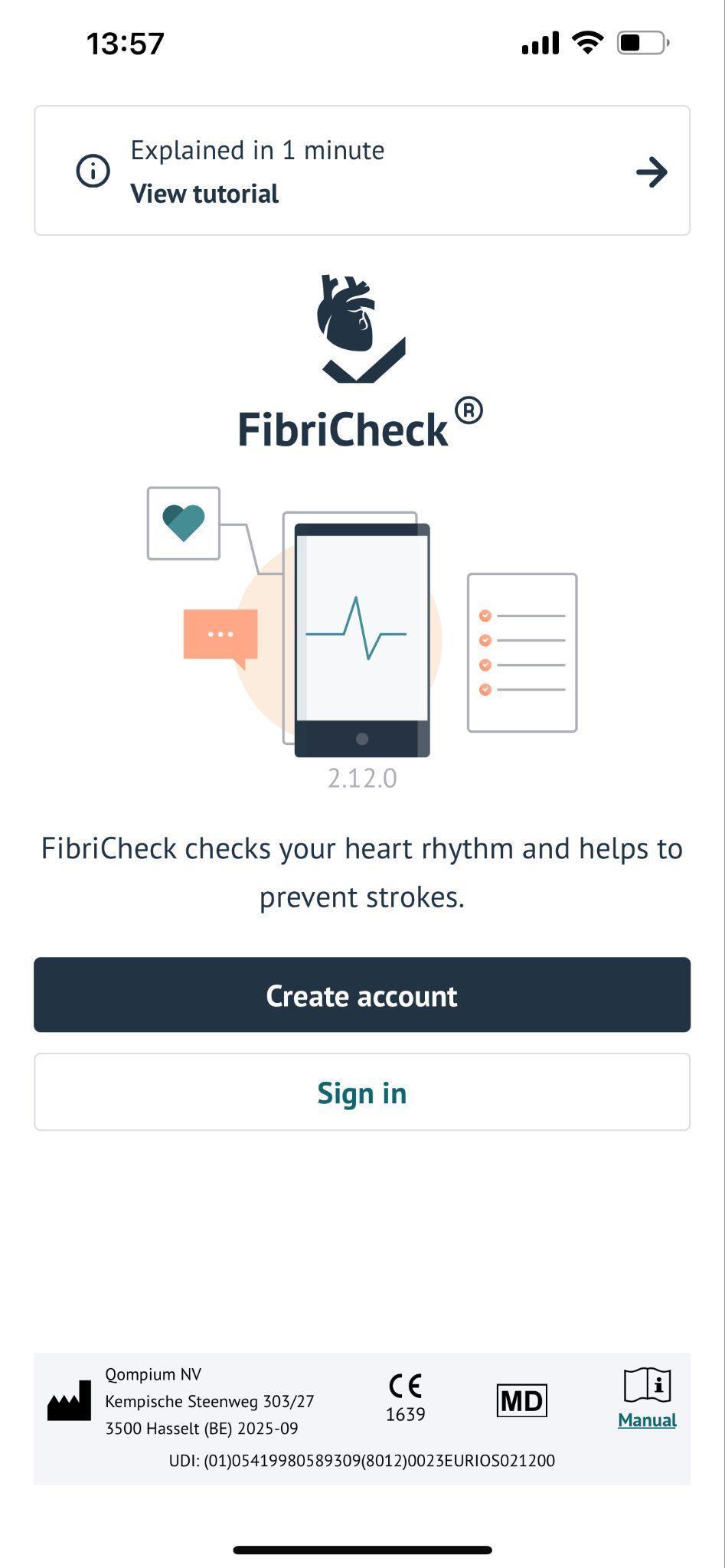
Figure 2: The start screen when you open the FibriCheck Application.
# 4.2 Setting up your personal account
Tap on the FibriCheck icon to open the FibriCheck app. Select “Create account” and follow the instructions as presented. You are required to provide your first and last name, your biological sex and birth date.
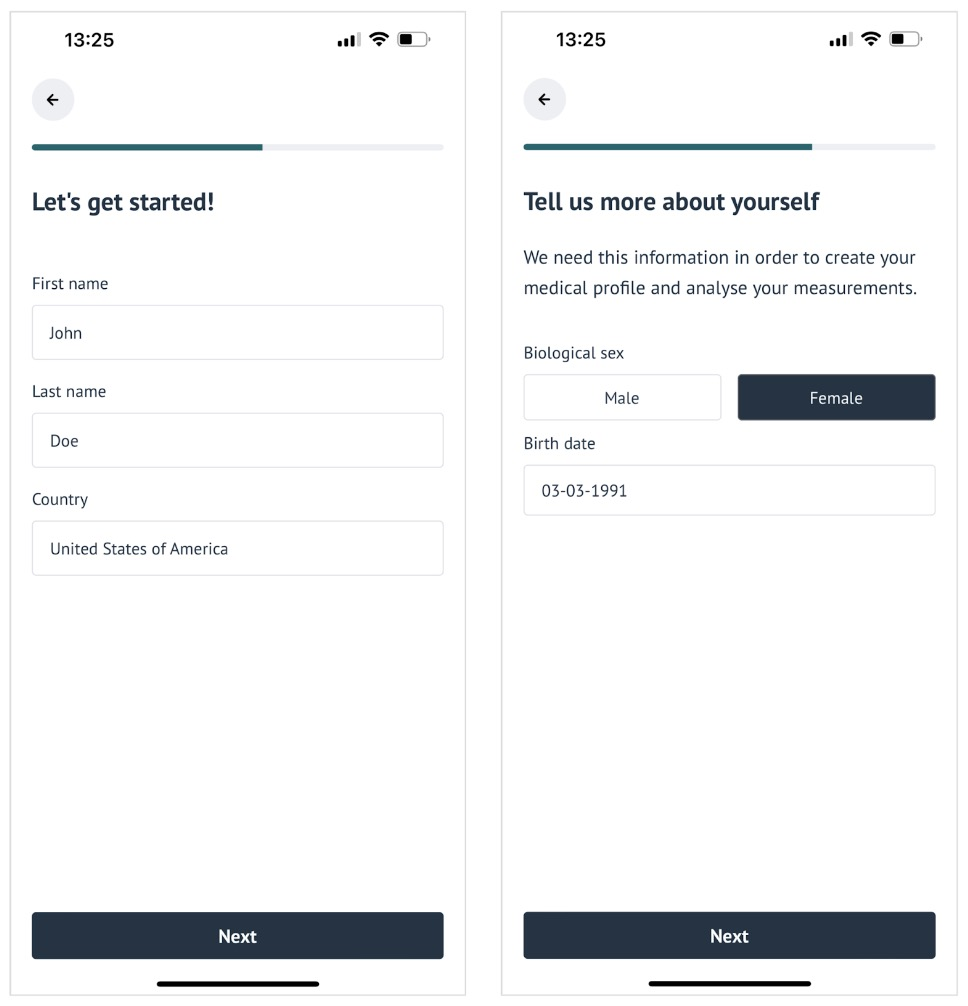
Figure 3: To create a personal account, you need to provide your first and last name, country, biological sex and birth date.
Provide your email address to finalize the account creation. Choose a password and pin code to secure your account. The password must contain at least 8 characters, including a lowercase letter, an uppercase letter and a number. The pin code is a security measure required for entering the FibriCheck Application. With this 4-digit code, you assure safe access to your health data in the application.
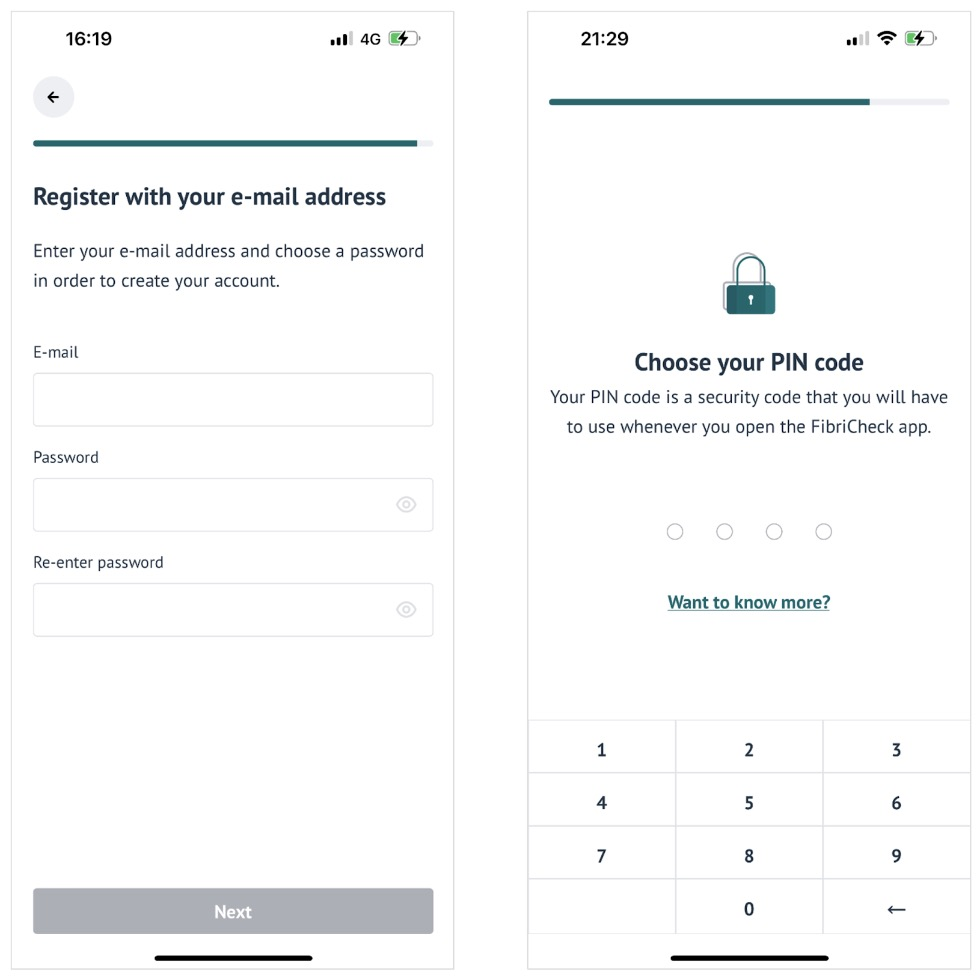
Figure 4: Create an account using your email address. Secure your account with a password and pin code.
# 4.3 Activate your prescription/subscription
When you have successfully created an account, you are one step closer to start using the FibriCheck Application to monitor your heart health! You can select + Start measurement. If you do not yet have an active prescription/subscription, you will be asked to activate one. You may have received a prescription from your healthcare provider in the form of a URL, QR-code or an invitation code consisting of letters and numbers or buy a subscription directly via FibriCheck. Select the type of option of preference and continue.
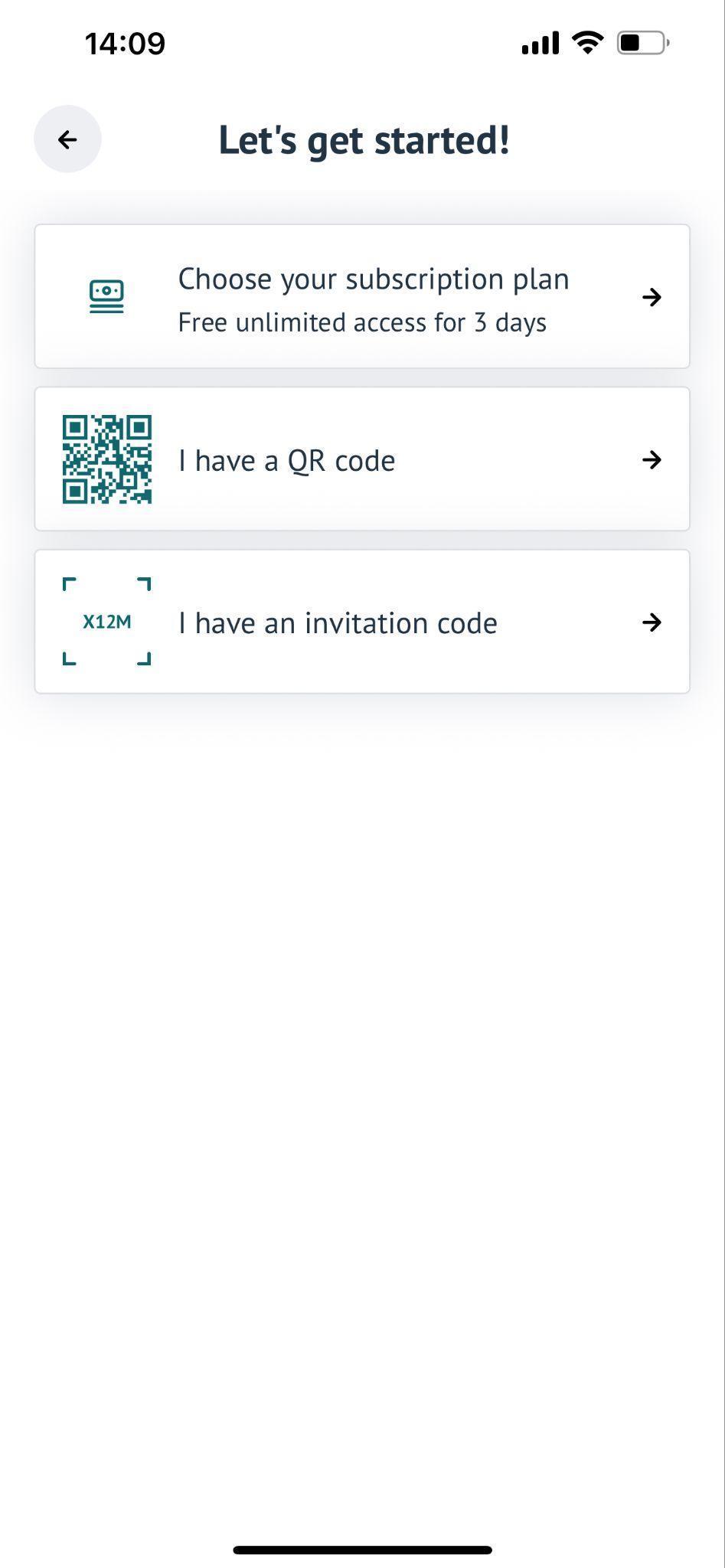
Figure 5: Activate your prescription/subscription to start monitoring your heart rhythm with the FibriCheck Application.
# 5. MONITOR YOUR HEART RHYTHM
# 5.1 Complete the measurement tutorial
You will be guided through a measurement tutorial before you can perform your first heart rhythm measurement with the FibriCheck Mobile Application. The following tips will help you to correctly perform a measurement:
- Prepare by removing the protective case of your phone and by disconnecting the charger. This will ensure that you are not hindered in correctly recording your heart rhythm.
- Please sit down when you want to perform a measurement. Take a seated position in a room with ambient light, and rest your arms on the table or your lap. Avoid dark rooms or excessively bright environments. Do not point your camera toward a light source such as a lamp or the sun.
- Locate the correct camera on your smartphone using the peephole feature. The peephole will help you identify which camera the FibriCheck Mobile Application will use to record a measurement, which is especially useful for smartphone devices with multiple cameras. The peephole will also help you practice correct finger placement. The camera must be fully covered to obtain a high quality measurement.
- It is important to not talk, move or relocate your finger during the measurement. This can interrupt the measurement or influence the quality of the measurement. It is important to remain calm and breathe normally. A measurement will take 60 seconds.
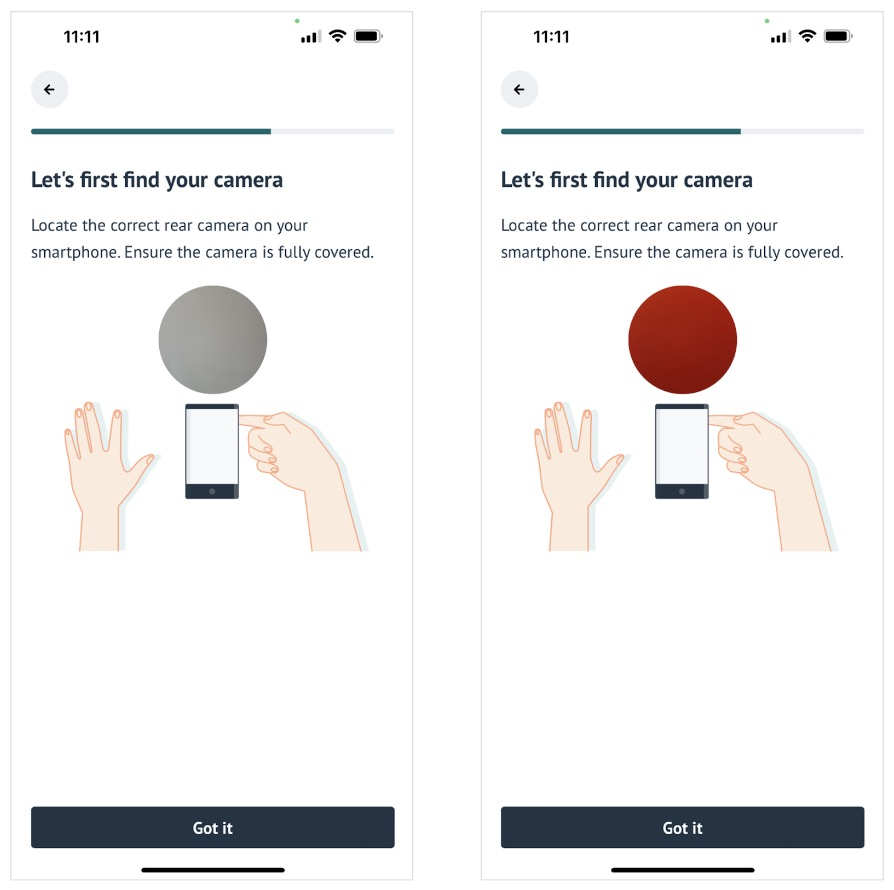
Figure 6: The peephole helps you to identify which camera to use and to correctly position your fingertip. Your fingertip should fully cover the camera to obtain a high quality measurement.
# 5.2 Perform a measurement
When you have completed the measurement tutorial, you can start monitoring your heart rhythm. A measurement will automatically start when you have placed your finger correctly on the previously identified camera. Make sure to relax and to fully cover the camera.
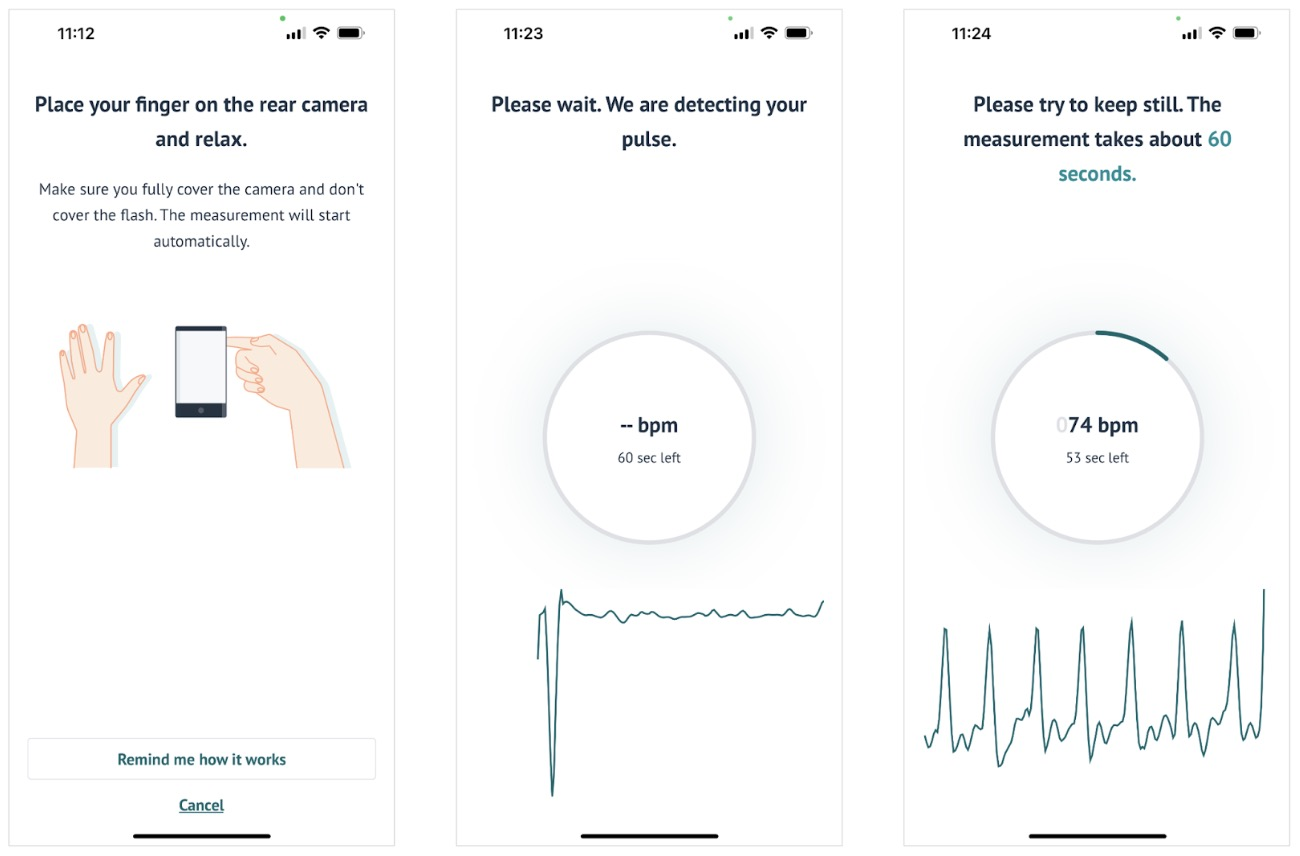
Figure 7: A measurement will initiate automatically when you have fully covered the correct camera with your fingertip. When your pulse is detected, your heart rhythm will be recorded for 60 seconds. Keep still and do not move your fingertip during the measurement.
The FibriCheck Mobile Application might take a few seconds to detect your pulse. When your pulse is detected, the recording will start and will take about 60 seconds to complete. This is indicated by a countdown clock on your screen. You will also see your heart rhythm trace and heart rate in beats per minute.
NOTE: Do not cover the flashlight with your fingertip, this might become hot.
NOTE: FibriCheck can’t diagnose atrial fibrillation but can let you know if your heart rhythm shows signs of atrial fibrillation.
NOTE: Do not change medication or health regimen without talking to your healthcare provider.
NOTE: FibriCheck does not detect or register all changes in heart rates, heart rhythms or heart waveforms.
NOTE: FibriCheck can’t check for heart attacks, strokes, or other heart conditions.
# 5.3 Provide context information
After the 60-second measurement you can enter information to provide context for your measurement. If you were experiencing symptoms during the measurement, you can indicate this by selecting one or more symptoms presented in the FibriCheck Application.
Table 1: The list of symptoms and their explanation from which you can choose to provide context to your heart rhythm measurement.
| Symptom | Explanation |
|---|---|
| Palpitations | The feeling that your heart skips a beat or that it is pounding. |
| Chest pains | Sudden pain, burning or tight feeling in the chest. |
| Shortness of breath | Having more difficulties breathing or catching your breath. Feeling like you are out of breath. |
| Racing heart | A feeling as if your heartbeat is fast and possibly irregular. |
| Lightheaded | A feeling as if you might faint. Your body may feel heavy, possibly combined with nausea and impaired vision. |
| Confusion | Feeling more confused than usual. |
| Fatigue | A feeling of being tired. |
| Dizziness | A feeling that your surroundings are spinning or moving. |
| Feeling of fainting | Feeling faint, woozy, weak or unsteady. |
Table 2: The severity scale that helps you indicate how your symptoms are affecting you.
| Severity | Explanation |
|---|---|
| Mild | My normal daily activity is not affected and my symptoms are not troublesome to me. |
| Moderate | My normal daily activity is not affected, but my symptoms are troubling me. |
| Severe | My normal daily activity is affected by my symptoms. |
| Disabling | I cannot continue my daily activities due to my symptoms. |
Next, you can indicate which activity you were performing before the measurement. Select Save to conclude the measurement process. Your result will now be analyzed by FibriCheck’s clinically validated algorithm.
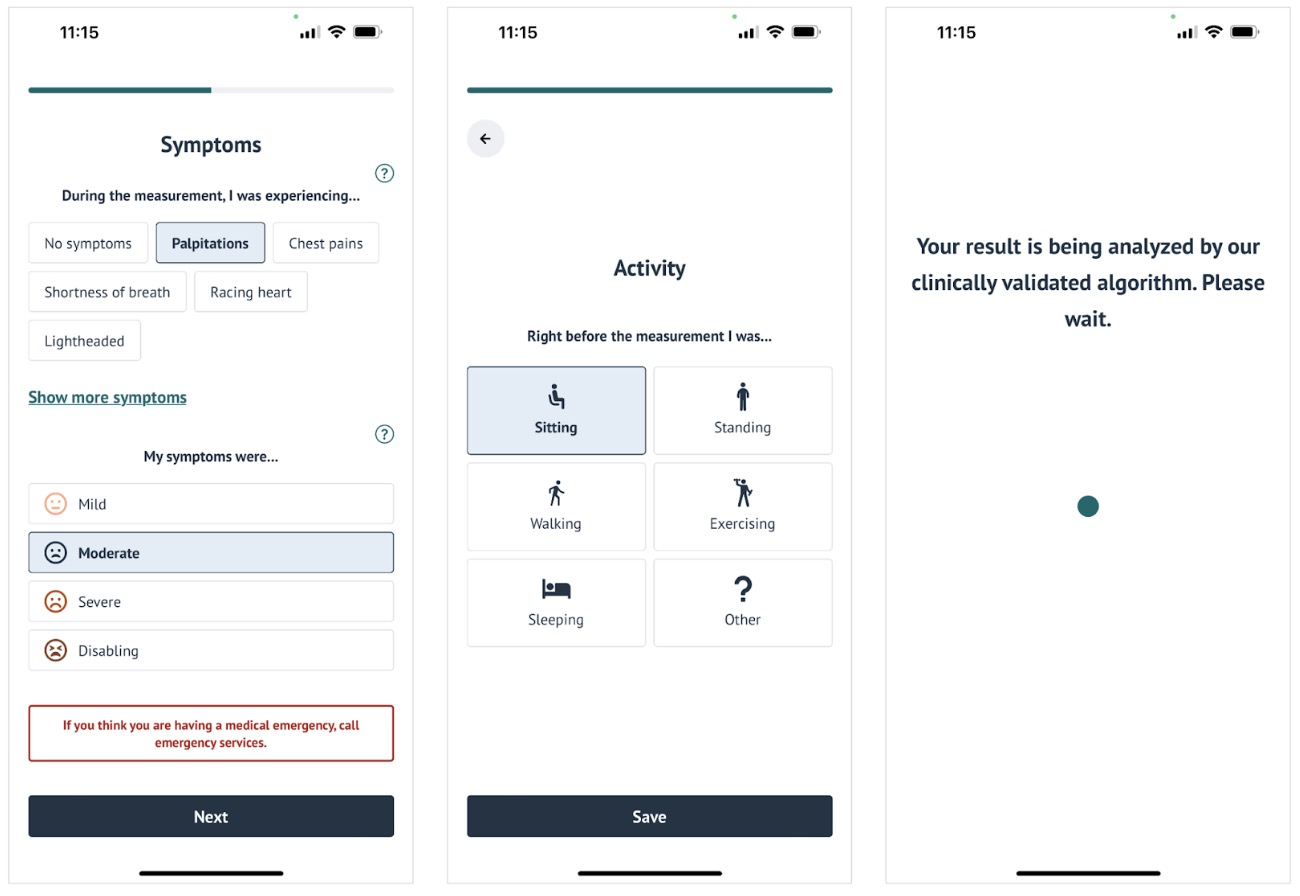
Figure 8: The FibriCheck Application helps you to provide context to your heart rhythm measurements. This information can help your healthcare provider with their medical decision making.
NOTE: If you think you are having a medical emergency, call emergency services.
NOTE: The only purpose of the symptom and activity information is to provide the necessary context to your measurement. This will not impact the analysis by FibriCheck’s algorithm but might help your healthcare provider interpret the results.
# 5.4 Receive results
Your measurement will be analyzed by FibriCheck’s clinically validated algorithm. You will immediately see the result in the FibriCheck Mobile Application.
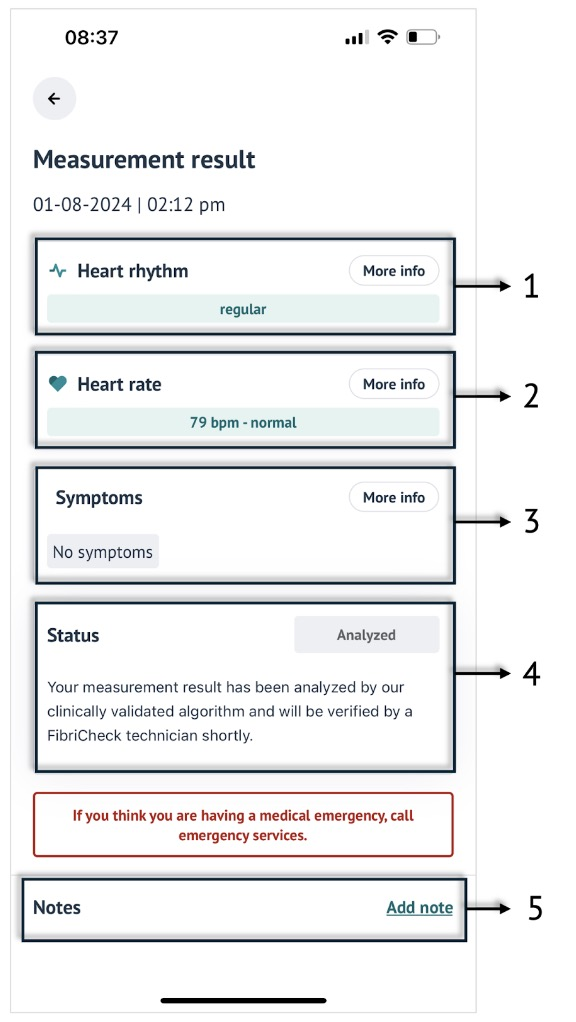
Figure 9: The measurement result screen consists of five boxes: (1) the heart rhythm result, (2) the heart rate result, (3) the symptoms, (4) the measurement status and (5) the notes.
# 5.4.1 Heart rhythm result
The first box on the measurement screen informs you about your heart rhythm result. The result is presented using a label and a color. There are five possible results that you may see, select More info in the FibriCheck Application to read the description.
Table 3: The heart rhythm results that you may receive from the FibriCheck Application. The results are communicated to you using a label and a color. A description is available under More info.
| Label | Color | Description |
|---|---|---|
| Regular | Green | Low variability in the heart rhythm is detected during the measurement. This indicates a normal sinus rhythm. This does not guarantee that no arrhythmia or other cardiac condition is present. |
| Unclassified rhythm | Orange | Rhythm variability is detected which might indicate a possible finding of an arrhythmia such as ectopic beats, atrial fibrillation or any other arrhythmia. |
| Possible atrial fibrillation | Orange | Rhythm variability is detected which might indicate possible atrial fibrillation or atrial flutter. |
| Signal quality too low | Blue | The quality of the signal cannot be guaranteed. The measurement is not analyzed by our rhythm analysis algorithm, please try again. |
NOTE: You might have received a Signal quality too low result because you did not remove the protective case of your phone, you were moving during the measurement, your fingertip was placed incorrectly on the camera or you measured in a dark or excessively bright environment. We recommend you to revisit the tutorial and measure again.
# 5.4.2 Heart rate result
The second box on the measurement result screen informs you about your heart rate result. The analyzed heart rate is displayed in beats per minute (bpm) together with a label and a color. There are three possible results that you may see, select More info in the FibriCheck Application to read the description.
Table 4: The heart rate results that you may receive from the FibriCheck Application.
| Label | Color | Description |
|---|---|---|
| Normal | Green | A normal resting heart rate for adults ranges between 50 to 100 beats per minute. |
| Elevated | Orange | An elevated heart rate, or tachycardia, is a common type of heart rhythm disorder in which the heart beats faster than normal while at rest. It’s normal for your heart rate to rise during exercise or as a physiological response to stress, trauma or illness. |
| Low | Orange | A low heart rate, or bradycardia, is a lower than normal heart rate. For some people, bradycardia doesn’t cause symptoms or complications, for others this is a serious condition that requires medical attention. Bradycardia can also be the result of medication that your healthcare provider prescribed. |
# 5.4.3 Symptoms
In the third box you can see the symptoms that you selected with the severity. Select More info to read the description of each symptom (see Table 1 and Table 2).
# 5.4.4 Measurement status
The status of your measurement is shown in the fourth box of the measurement result screen. Each measurement will first receive an analysis from FibriCheck’s algorithm. You will see the status Pending analysis until the measurement is analyzed by our algorithm. Once the algorithm has provided a measurement result, the status will change to Analyzed. Depending on the subscription, a FibriCheck technician will verify the result that has been outputted by the algorithm. FibriCheck technicians are trained professionals with experience in the FibriCheck technology. The status will change to Verified.
NOTE: If there is no connection, a measurement can still be performed but the analysis will only be available after the connection has been restored and the measurement has been sent to the cloud.
Table 5: The statuses of a FibriCheck measurement.
| Status | Description |
|---|---|
| Offline | Your measurement will be sent for analysis when internet connection has been restored. |
| Pending analysis | Your measurement result will be analyzed by our clinically validated algorithm shortly. |
| Analyzed | Your measurement result has been analyzed by your clinically validated algorithm and will be verified by a FibriCheck technician shortly. |
| Verified | Your measurement result has been verified by a FibriCheck technician |
# 5.4.5 Notes
In the last box on your measurement result screen you can add notes to your measurement. Your healthcare provider will be able to see the notes in the FibriCheck Portal. Your healthcare provider can also add notes to your measurement via the FibriCheck Portal. These notes will be visible to you in the FibriCheck Application.
NOTE: Your notes or your healthcare provider’s notes will not impact the analysis of the FibriCheck algorithm or the verification by the FibriCheck technician.
# 6. Blood pressure logbook
Note: The blood pressure module must be enabled in order to use it. Navigate to settings > modules and enable blood pressure. If the module is not shown, the blood pressure functionality may not be available for your type of subscription.
# 6.1 Creating a logbook entry
On the home screen, tap “Add logbook entry”. Enter date, time, and systolic and diastolic pressure in mmHg (as measured with your blood pressure monitor). Optionally, you can add a photo of your blood pressure monitor’s screen.
After tapping “next”, a context screen appears where more information can be added to the measurement. Please indicate what you were doing immediately before taking the measurement and whether you were experiencing any symptoms.
Tap “save” to finalize the logbook entry. Please double check your entries before saving them, as the entered values can not be deleted or edited once the logbook entry is saved.
After your logbook entry, the entered values will be classified according to the ESC/ESH Guidelines for the Management of Arterial Hypertension. The corresponding classification will be shown on the result screen.
NOTE: Blood pressure classifications shown in the FibriCheck application are based on your manually entered blood pressure registrations. Medical conditions, symptoms, and activities are not considered but are collected to assist your physician in making a diagnosis. These classifications are not intended to be a replacement for medical evaluations or examinations by your physician.
NOTE: If you use a FibriCheck prescription, your blood pressure values will not always automatically be monitored by your physician. In case of uncertainty, please consult your physician.
# 7. WEIGHT LOGBOOK
# 7.1 Enable the Weight and BMI module
The Weight and BMI module must be enabled in order to use it. Navigate to Settings > Modules and enable "Weight and BMI". If the module is not shown, the Weight and BMI functionality may not be available for your account.
# 7.2 Creating a weight entry
On the home screen, tap "Add logbook entry" in the "Monitor your weight" section. Enter date, time, weight and height. Previously entered height values will be prefilled. Click "confirm" to store the measurement.
After adding your entry, your BMI will be calculated and shown on the result screen.
NOTE: If you use a FibriCheck prescription, your weight and BMI values will not always automatically be monitored by your physician. In case of uncertainty, please consult your physician.
# 7.3 Explanation of the BMI classifications
The FibriCheck application distinguishes the following classifications, based on the WHO BMI classification:
Underweight - You are considered underweight if your BMI is less than 18.5 kg/m².
Normal Weight - You are considered to have a normal weight if your BMI is between 18.5 and 24.9 kg/m².
Overweight - You are considered overweight if your BMI is between 25 and 29.9 kg/m².
Obesity - You are considered obese if your BMI is equal or greater than 30 kg/m².
# 8. NAVIGATION
# 8.1 Start screen
The start screen is the first screen you see when you open the FibriCheck Application.
Figure 10: Start screen.
On the start screen, you can perform the following actions:
- Select Create account when you use the FibriCheck Application for the first time.
- Select Sign in to enter the FibriCheck Application with an existing account.
- Consult the electronic instructions for use by selecting Manual in the lower right corner.
# 8.2 Home screen
When you enter the FibriCheck Application you see the home screen.
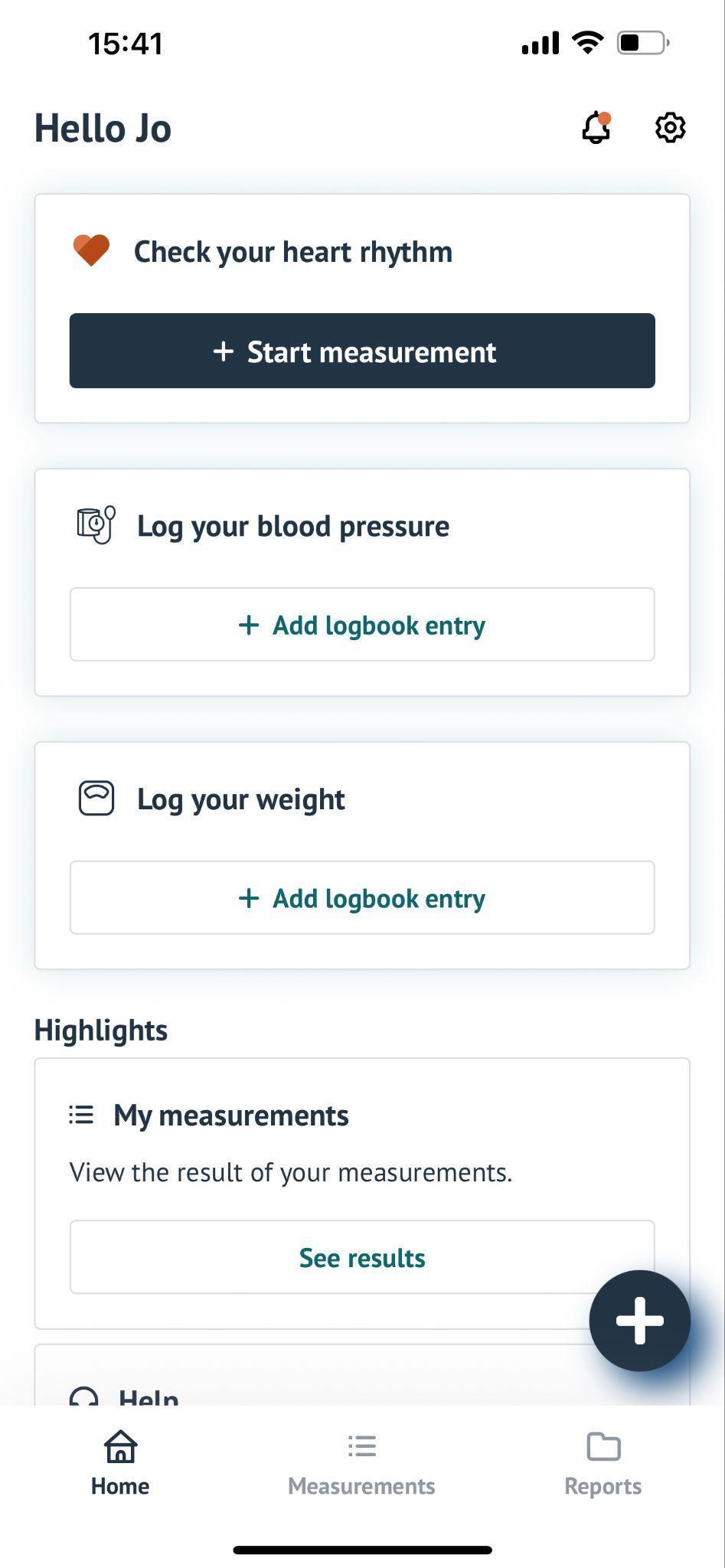
Figure 11: Home screen.
You can perform several actions or navigate to different parts of the application:
- Start a measurement by selecting + Start measurement.
- Navigate to an overview of your measurements by selecting See results in the middle of the home screen or by selecting Measurements at the bottom of the screen.
- View your notifications by selecting the notification symbol in the upper right corner.
- Log blood pressure in the logbook.
- Log weigh in the logbook.
- If you have any questions or if you require assistance, select Get help. Navigate to the settings by selecting Settings in the top right corner.
# 8.3 My measurements
This screen contains an overview of all the measurements you performed. The measurements are presented in chronological order. The graph at the top of the page plots the heart rate values from all your measurements on a time axis, with the oldest values on the left and the newest values on the right.
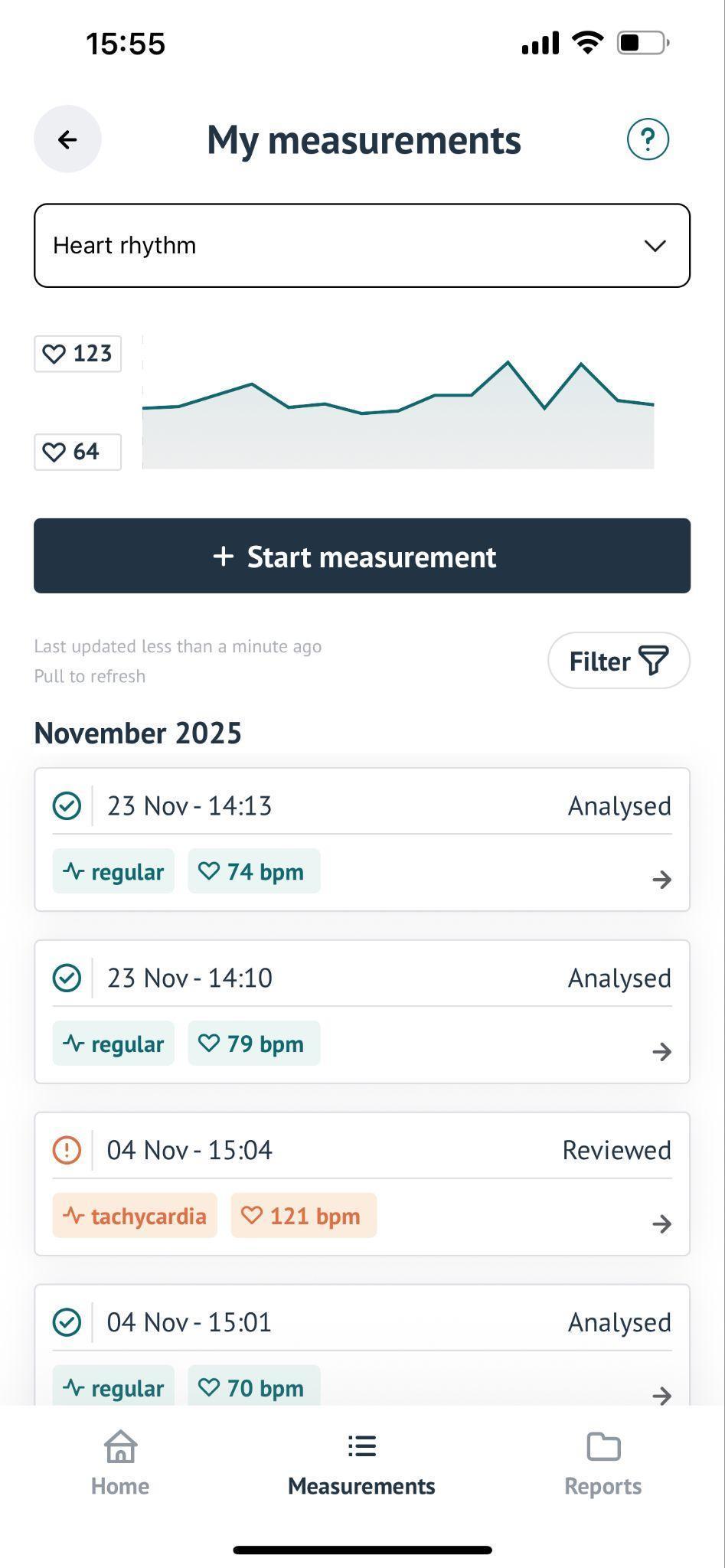
Figure 12: Measurement overview.
You can perform several actions on this screen:
- You can consult a results guide by selecting the ? in the upper right corner. The results guide explains the heart rate and heart rhythm results that you may receive on a measurement.
- You can perform a new measurement by selecting + Start measurement.
- You can look for a specific measurement by selecting Filter. The filter allows you to filter on heart rhythm labels.
- You can select a measurement from the overview. You can navigate to settings by selecting Settings in the lower right corner. You can navigate to the home screen by selecting Home in the lower left corner or by selecting the arrow in the upper left corner.
- You can show the logbook of blood pressure and weight logs by switching the module on top.
# 8.4 Help
The help screen contains several useful links:
- Navigate to our Frequently Asked Questions page by selecting the FAQ. If you have a question or experience difficulty using the FibriCheck Mobile Application, you might find helpful information here.
- Read more about atrial fibrillation by selecting Atrial fibrillation info. Select Instructions for use to consult the electronic manual. Learn how FibriCheck protects your data by selecting Privacy policy. Send an email to support@fibricheck.com if you wish to receive the privacy policy in paper format.
- By using the FibriCheck Application, you also accept our terms of use. You can always reread them by selecting Terms of use. If you wish to receive the terms of use in paper format, send an email to support@fibricheck.com.
- Select Contact to see the contact details of Qompium nv, the manufacturer of the FibriCheck Application.
- Reach out to our customer support team by selecting Contact us at the bottom of the help page. Navigate to the home screen by selecting the arrow in the upper left corner.
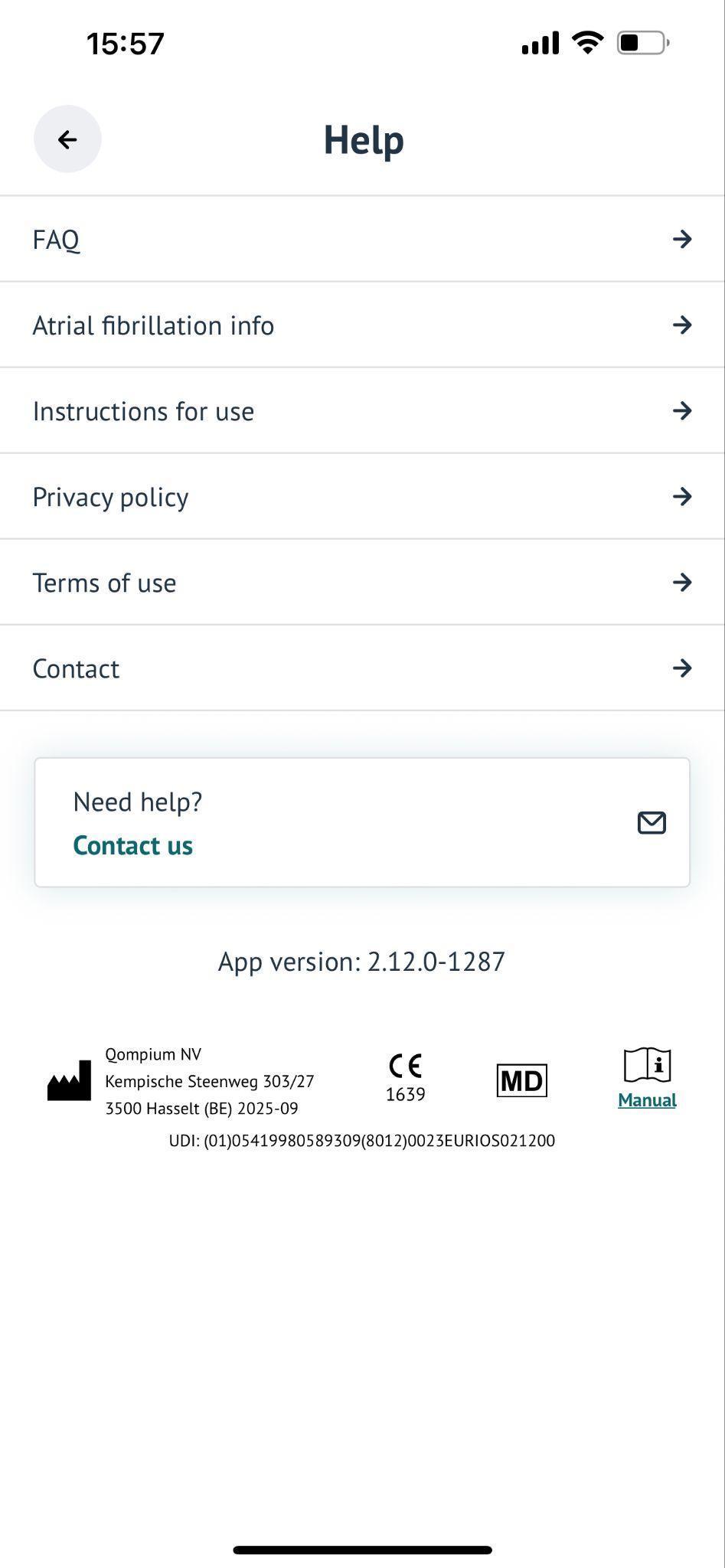
Figure 13: Help overview.
# 8.5 Settings
On the settings screen, you can navigate to the following:
- Select Profile to see the first name, last name, country and email address that you provided during account creation. You can always change your first name, last name and country. You can optionally provide your phone number. Send an email to support@fibricheck.com if you wish to change your email address.
- Select Prescriptions to see if you have an active prescription or to activate a new prescription (QR-code or invitation code). If you have an active prescription, you can see on which date your prescription expires.
- Select Measurement reminders to set up reminders to check your heart rhythm with FibriCheck. It is important to monitor your heart rhythm regularly, a reminder will help you create a habit.
- Select Notifications to change your notification preferences. The FibriCheck Mobile Application provides you with useful health messages, notifies you about measurements that have been verified or about changes to the app, and reminds you to check your heart rhythm.
- Select PIN code to choose a new pin code. Select Password to choose a new password. Select Help to navigate to the help page. Select Log out to log out of the FibriCheck Mobile Application. The next time you open the application, you need to sign in with your email address and password.
- Navigate to the home screen by selecting Home in the lower left corner or the arrow in the upper left corner.
- Navigate to the measurement overview by selecting Measurements at the bottom of the screen.
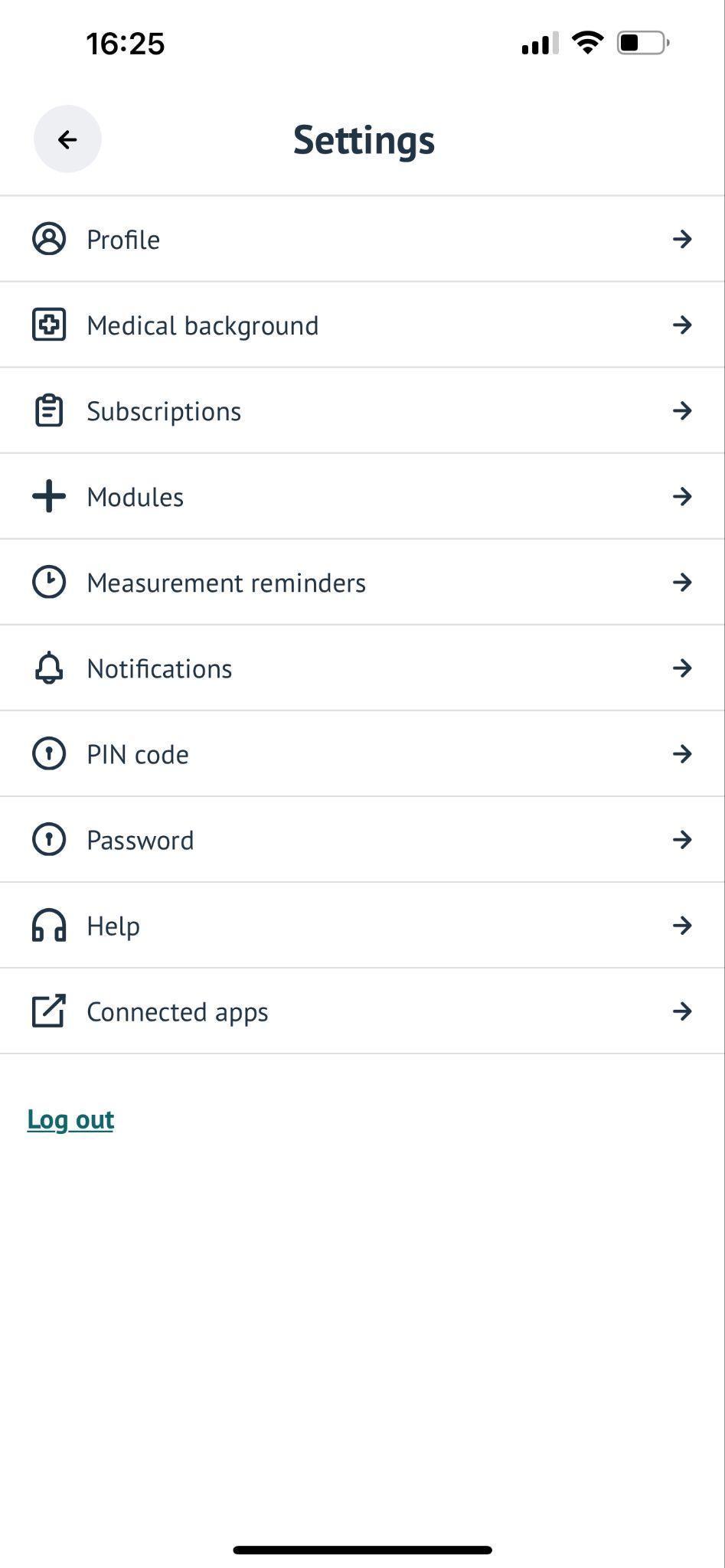
Figure 14: Settings overview.
# 9. RENEWAL AND DISPOSAL
# 9.1 Expired prescription
You can check the status of your prescription by opening the FibriCheck Application and navigating to: Home screen > Settings > Prescriptions.
You can renew your subscription or prescription by selecting the option of preference. Under medical supervision, a prescription of your health care provider is required to make your data available.
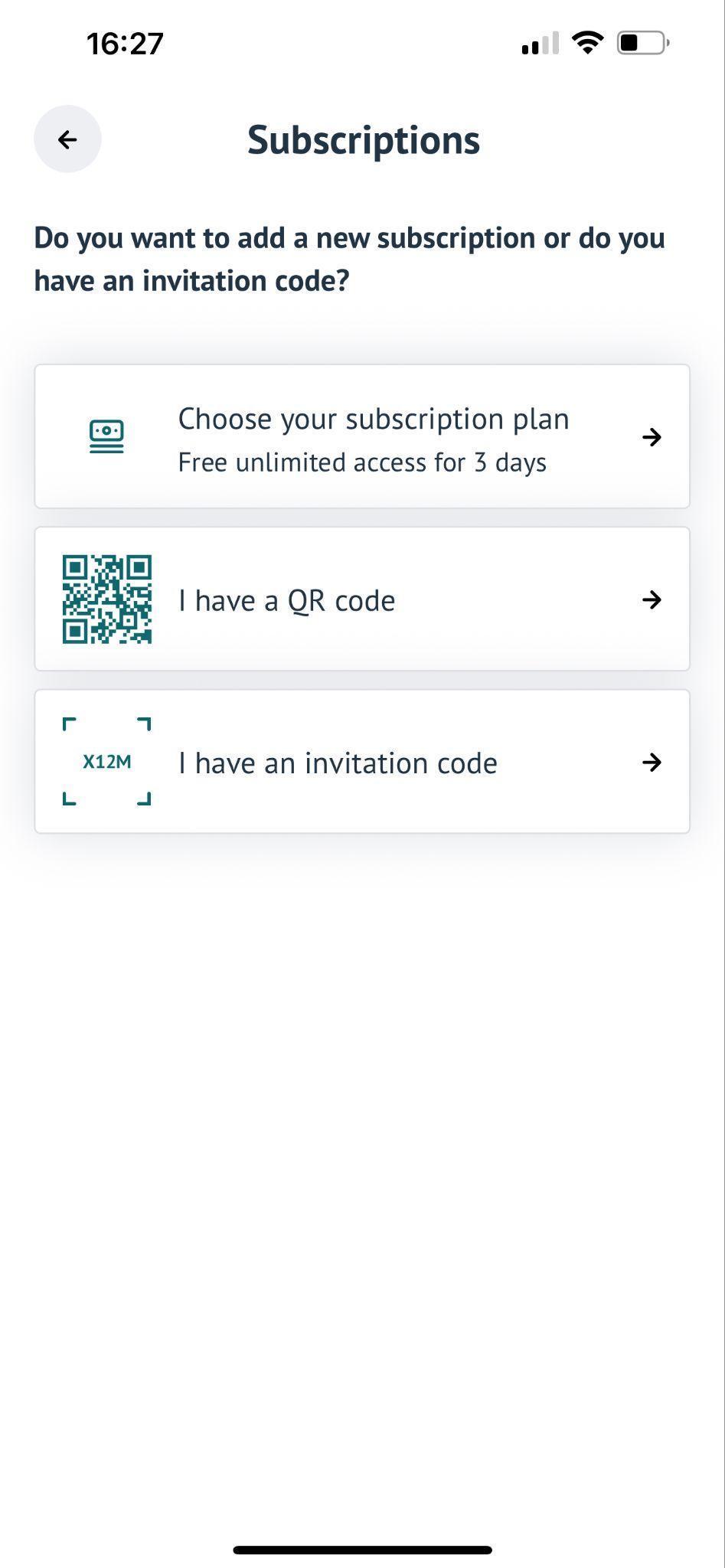
Figure 13: Check your active prescriptions or add a new prescription.
# 9.2 Delete account
You can delete your account by opening the FibriCheck Mobile Application and navigating to: Home screen > Settings > Profile > Delete account. Enter a reason for wishing to delete your account FibriCheck. Select Confirm and delete. Enter your pin code to confirm the deletion of your account.
# 9.3 Delete the FibriCheck Application
You can delete the FibriCheck Application from your smartphone device by tapping and holding the app icon. On an iOS device, you need to select the X symbol, then select Delete. On an Android device, you need to select Uninstall.
NOTE: Deleting the FibriCheck Application does not delete your account or your personal data.
# 10. CYBERSECURITY
FibriCheck uses industry-standard encryption protocols to secure all products and data in transfer and at rest. Continuous backups are in place to safeguard data in case of adverse events.
All data exchanged between the FibriCheck Mobile Application, the FibriCheck Cloud, and the FibriCheck Portal is securely transmitted over HTTPS interfaces using TLS versions 1.2 and 1.3, ensuring comprehensive end-to-end security.
FibriCheck requires an internet connection to function. The FibriCheck Mobile Application displays a visual alert when there is no internet connection. Any measurements taken while offline will be stored temporarily and automatically uploaded once connectivity is restored.
The FibriCheck Mobile Application is available for download and updates via the Android Play Store and iOS App Store. When an update includes critical cybersecurity enhancements, it becomes mandatory for end-users. The application will require users to install the latest version, preventing access to older versions for enhanced security.
To ensure safe and secure use of FibriCheck and the Personal Health Information (PII) data it generates, it is important that end-users follow these guidelines:
- Do not share your FibriCheck credentials.
- Maintain physical security of your smartphone.
- Use FibriCheck exclusively on smartphone devices that are actively supported and continue to receive updates from the manufacturer.
- Follow the smartphone manufacturer’s instructions on how to perform operating system updates.
- Do not use FibriCheck on rooted or jailbroken devices.
Should you have any security concerns, please reach out to us at incidents@fibricheck.com. We are dedicated to responding to your message within 72 hours with additional information on how to share your findings securely with us, and commit to resolving the issue promptly and effectively. We ask that you do not publicly disclose the issue until it has been addressed and a mutual disclosure time has been agreed upon.
# 11. APPLICABLE SYMBOLS
| Symbol | Detail |
|---|---|
 | Indicates the software is a registered Medical Device |
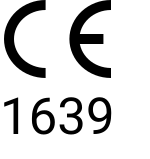 | European Conformity Mark with Notified Body Number |
 | Consult electronic instructions for use (eIFU) with appropriate indication |
 | Manufacturer details including date of release |
# 12. CONTACT DETAILS
For more information or questions, please check our FAQ at help.fibricheck.com
Serious incidents that have occurred in relation to the device shall be reported to:
(1) the legal manufacturer via support@fibricheck.com (2) the local competent authority
# 12.1 Manufacturer
Qompium
Kempische Steenweg 303/27
3500 Hasselt
Belgium
# 12.2 Australian Sponsor
Emergo Australia
Level 20, Tower II
Darling Park
201 Sussex Street
Sydney, NSW 2000
Australia
# 12.3 Swiss Authorised Representative

OMCS Medical GmbH.
C/O Mr Wilhelm Gudelow
Aegeristrasse 5
6300 Zug
Switzerland
AR@omcmedical.com