# Instructions for Use - Portal US
# 1.4
The instructions for use are supplied electronically. A printed version can be provided within 7 calendar days at no extra cost by contacting support@fibricheck.com.
# 1 PRODUCT DESCRIPTION
FibriCheck is a medical device software that can be used to determine heart rhythm conditions, with a primary focus on the detection of atrial fibrillation with 95.9% sensitivity and 99.3% specificity. FibriCheck can reliably analyze the heart rhythm if the heart rate is between 40 and 200 bpm.
The FibriCheck Mobile Application is a smartphone application for patients intended to record, display, store and transmit photoplethysmography (PPG) data. Heart rhythm measurements are performed by placing the fingertip on the camera of a smartphone device. This way, volumetric changes can be detected.
The FibriCheck Portal is a web application for healthcare providers intended to display data that was captured by the FibriCheck Mobile Application. Healthcare providers can use the FibriCheck Portal to issue FibriCheck prescriptions, to manage their patients and to consult measurement data.
# 1.1 Indications for use
FibriCheck is indicated for self-testing by patients who have been diagnosed with, or are susceptible to developing atrial fibrillation or who would like to monitor and record their heart rhythm on an intermittent basis.
NOTE: The FibriCheck Mobile Application is restricted to prescription use only.
# 1.2 Contraindications
There are no known contraindications for the FibriCheck Portal.
The FibriCheck Mobile Application is not intended to be used by all individuals:
- Individuals under the age of 22.
- Individuals with conditions causing tremors or the inability to hold their hand still for at least 60 seconds. A measurement cannot be recorded or processed accurately in case of excessive motion.
- Individuals with cardiac pacemakers, ICDs, or other implantable electronic devices that control the natural heart rhythm.
- Individuals with reduced blood flow or very thick or hard skin on their fingertips due to, for example, perniosis or callus formation. This will hinder the FibriCheck Mobile Application’s ability to measure blood volume changes in the capillaries.
# 1.3 Warnings
- The FibriCheck Mobile Application cannot be used to detect heart attacks or ischemic heart conditions. If your patient experiences chest pain, pressure, tightness, or what they think is a heart attack, they should call emergency services.
- A complete diagnosis cannot be made based on the results in the FibriCheck Mobile Application alone. Patients are instructed to first consult with their healthcare provider before making any medical decision, including altering their medication or treatment.
- The FibriCheck Mobile Application does not detect or register all changes in heart rate, heart rhythm or heart waveform.
- Interpretations shown in the FibriCheck Portal are potential findings, not a complete diagnosis of cardiac conditions. All interpretations should be reviewed by a healthcare professional for clinical decision making.
- The FibriCheck Mobile Application cannot be used to perform measurements while driving or during physical activity.
- The FibriCheck Mobile Application cannot be used to perform measurements when the camera lens is unclean or broken.
- There is no guarantee that your patient is not experiencing an arrhythmia or other health condition when a measurement is labeled ‘regular’ in the FibriCheck Portal or when they reported symptoms.
- Patients should not continue using the FibriCheck Mobile Application when they experience discomfort caused by the camera flash. They should avoid coverage of the flashlight with their finger.
- Measurements performed by the FibriCheck Mobile Application cannot be sent to the FibriCheck Portal without internet connection.
# 1.4 Guidelines for use
The FibriCheck Portal can be used in a browser with a compatible operating system. Internet connection is needed to use the FibriCheck Portal.
The FibriCheck Mobile Application can be used on a compatible smartphone device with sufficient battery and mobile network or wifi connection. If there is no connection, a measurement can still be performed but the analysis will only be available after the connection has been restored and the measurement has been sent to the cloud.
# 2 COMPATIBILITY
# 2.1 The FibriCheck Portal
The FibriCheck Portal is a web application that is compatible with:
- Google Chrome (128 or higher)
- Microsoft Edge (128 or higher)
- Mozilla Firefox (128 or higher)
- Safari (17 or higher)
You will always have access to the latest version of the FibriCheck Portal because it is a secured website. You will be notified of any updates.
# 2.2 The FibriCheck Mobile Application
# 2.2.1 Smartphone devices
The medical device feature of the FibriCheck Mobile Application can only be used on compatible smartphone devices. On incompatible devices, on which the FibriCheck Mobile Application has not yet been clinically validated, the medical device feature is disabled.
You can consult a list of compatible smartphone devices before you create a FibriCheck prescription. Patients can only activate a prescription and perform heart rhythm measurements on the following compatible devices:
- iPhone 15 Pro
- iPhone 15
- iPhone 14
- iPhone 13 Pro
- iPhone 13
- iPhone 12
- iPhone 11
- iPhone SE (3rd Gen)
- Samsung Galaxy A54
- Samsung Galaxy S23
# 2.2.2 Operating systems
The FibriCheck Mobile Application is compatible with Android 14 (or later) and iOS 17 (or later) operating systems.
# 3 GET STARTED
# 3.1 Request a personal account
Navigate to https://www.fibricheck.com/for-health-care-providers#form and fill in the form to get FibriCheck in your practice. The FibriCheck team will contact you and help you get started. They will set up a personal account for you and create one or more groups, which will help you organize your practice in the FibriCheck Portal.
# 3.2 Log in to the FibriCheck Portal
Navigate to https://portal-us.fibricheck.com and log in with your FibriCheck credentials. You will be asked to read and agree with the terms of use and privacy policy. Send an email to support@fibricheck.com if you wish to receive these documents in paper format.
# 4 CREATE YOUR FIRST PRESCRIPTION
The FibriCheck Mobile Application is only available on prescription by a healthcare provider. The prescription will allow your patients to start using the FibriCheck Mobile Application and will ensure that your patient’s data can be consulted in your FibriCheck Portal. You can create a prescription in the FibriCheck Portal.
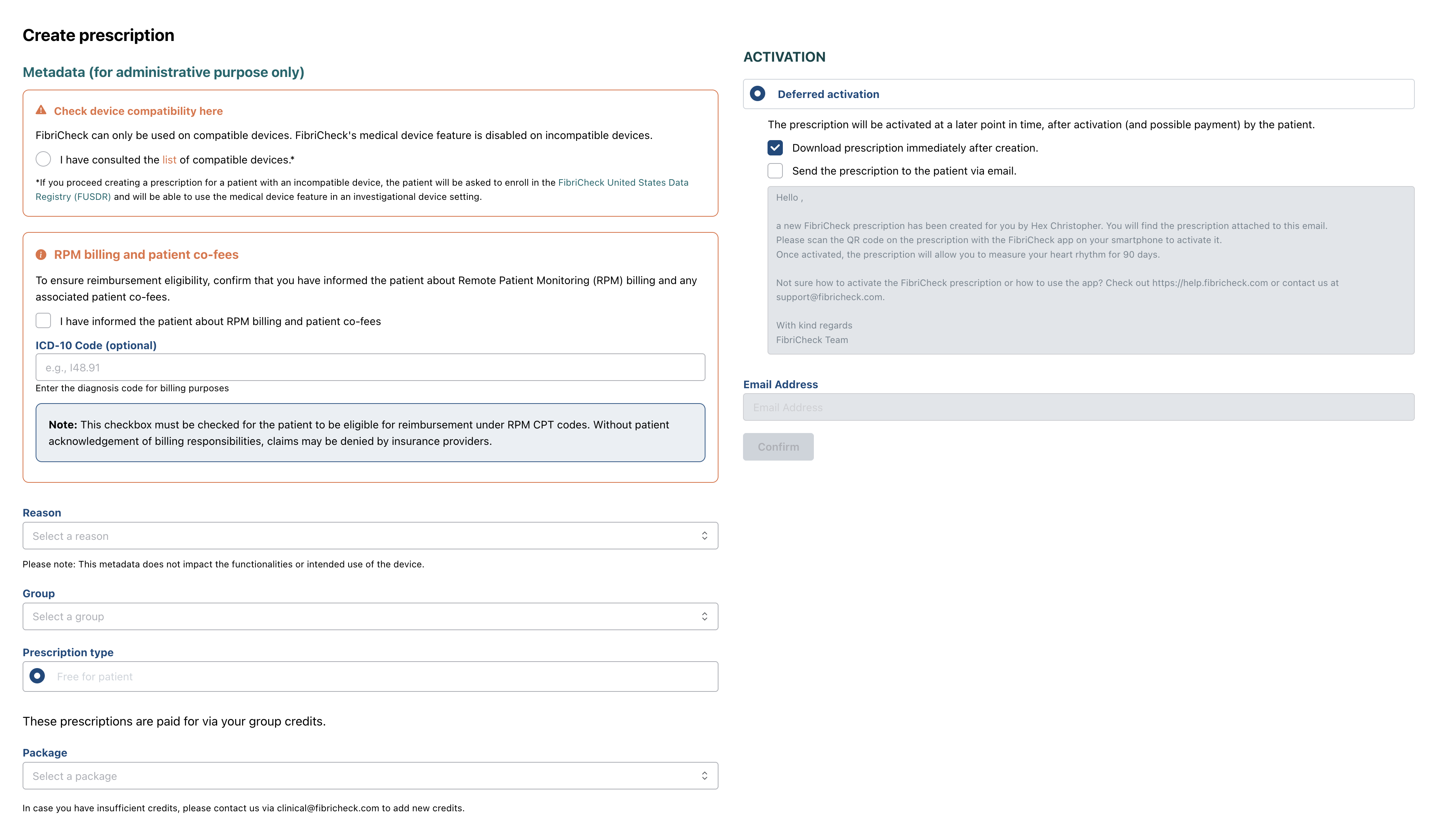
# 4.1 Patient selection
Before you can create a prescription, you need to verify if your patient has a smartphone device with which the FibriCheck Mobile Application is compatible. Patients can only activate a prescription and perform heart rhythm measurements on compatible smartphone devices. The medical device feature is disabled on incompatible devices on which the FibriCheck Mobile Application has not yet been clinically validated.
Confirm that you have consulted the list of compatible devices before you can continue.
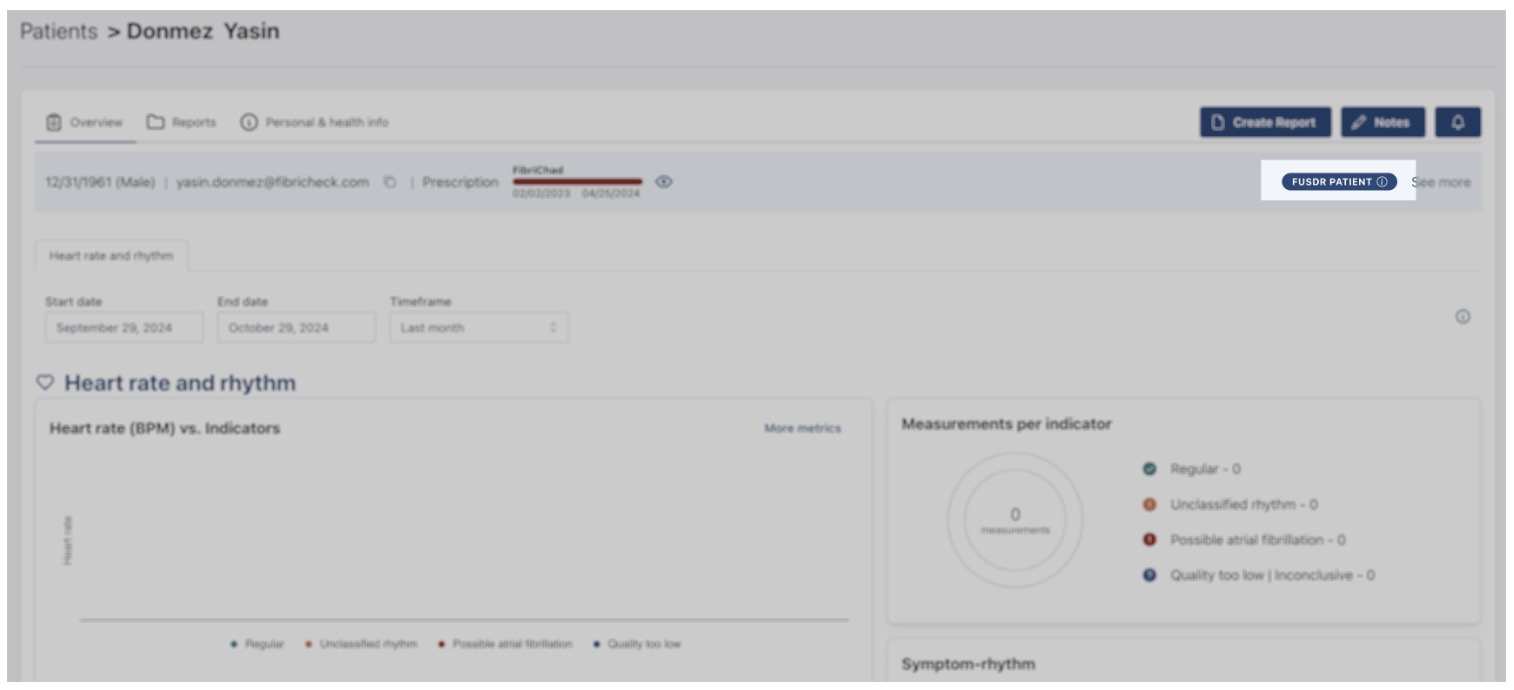
NOTE: When a patient does not have a compatible device, they can enroll in the FibriCheck United States Data Registry study (FUSDR), to evaluate the real-world performance of the FibriCheck AI platform. When they enroll in the FUSDR study through the FibriCheck Mobile Application, they will be able to perform measurements. Measurements performed in the context of this study will be labeled with the “FUSDR” label in the portal. More information on the FUSDR study can be found via this link (opens new window)
Select for which type of patient you are prescribing the FibriCheck Mobile Application. FibriCheck is intended for patients who are diagnosed with atrial fibrillation or who are susceptible to developing atrial fibrillation.
NOTE: The patient selection is metadata to better understand how FibriCheck is being used. This will not impact the functionality or intended use of the device.
An RPM billing and patient co-fees section is available where you can record patient consent for RPM billing.
# 4.2 Group selection
Use the dropdown menu to select the group under which you would like to onboard your patient. Using groups will help you to organize your practice. It will not impact the functionalities of FibriCheck.
# 4.3 Download or send prescription
You have now successfully created a FibriCheck prescription! You can either download this as a pdf or send it via email to your patient. An email template is prepared for you, but you are free to personalize the content.
The prescription is a QR-code that the patient needs to scan with the FibriCheck Mobile Application. The prescription contains clear instructions for your patient to get started with FibriCheck.
# 5 FOLLOW UP ON YOUR PATIENTS
The patients that have activated your prescription will appear on the Patients page of your FibriCheck Portal. You can select a patient to view their page. On a patient’s page, you can see their active prescription and its duration, their performed measurements displayed per day in a calendar or grouped in reports, and their personal information.
# 5.1 Receive measurements
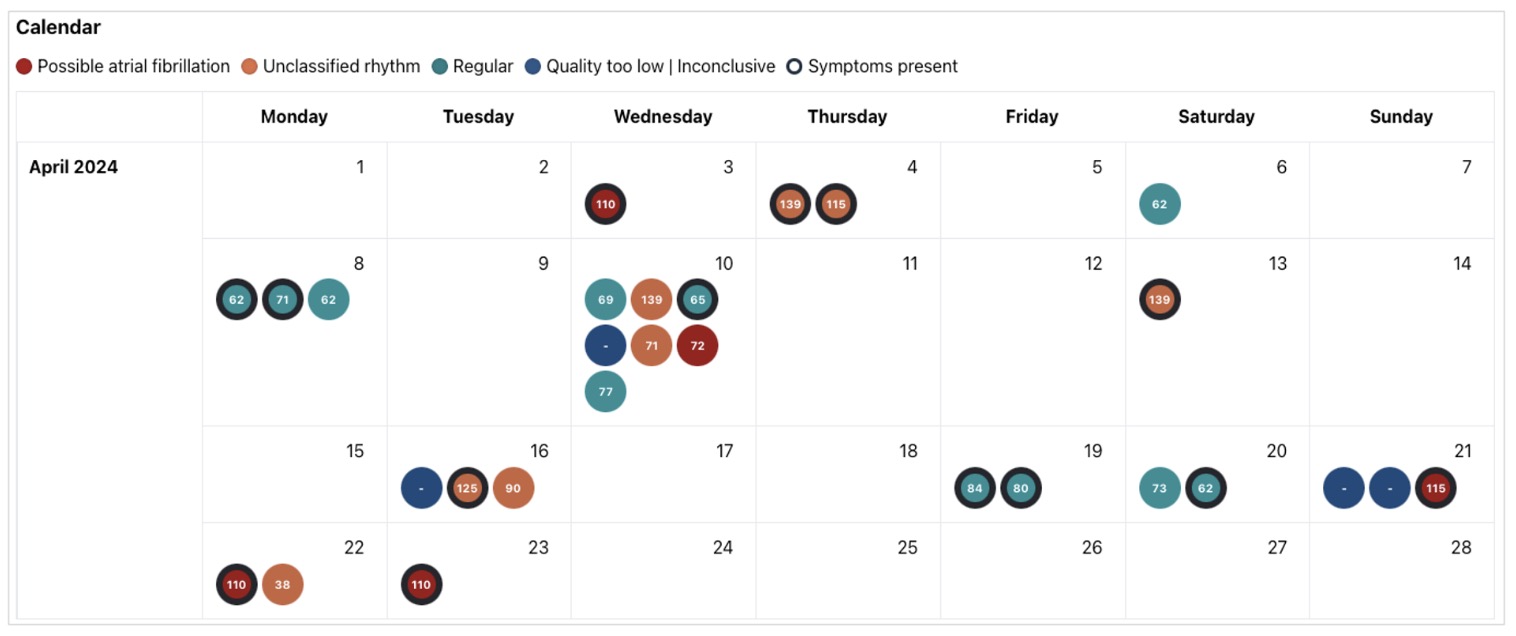
All the measurements that your patients performed with the FibriCheck Mobile Application are displayed in the calendar overview of the patient’s page. Each sphere represents one measurement. The color of the sphere indicates the heart rhythm result and the value in the sphere is the heart rate in beats per minute. The sphere has a black border when symptoms are reported.
# 5.2 Measurement details
Click on a sphere to open a measurement and see the measurement details.
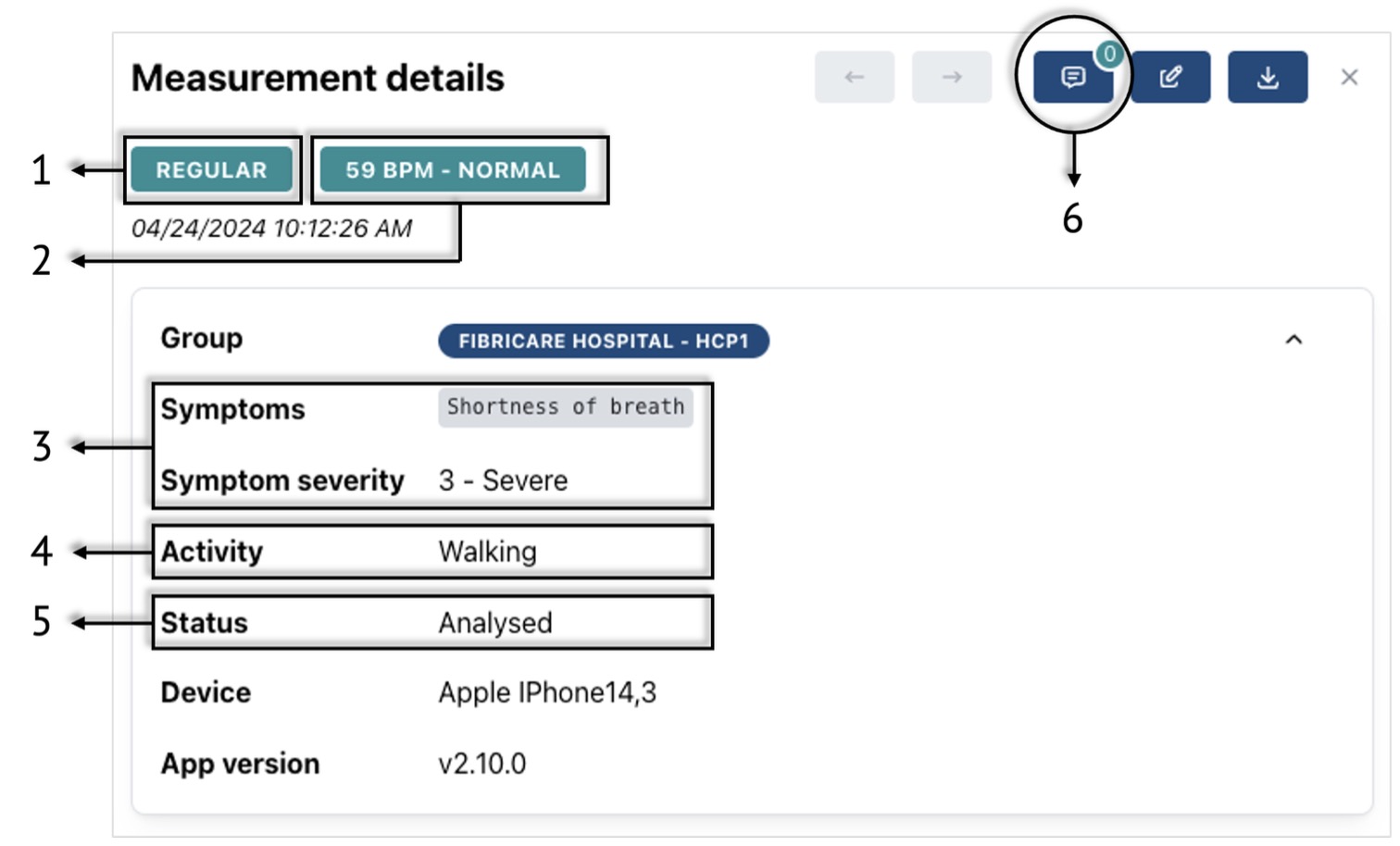
# 5.2.1 Heart rhythm result
The heart rhythm result is presented using a label and a color. There are five possible results that you may see.
| Label | Color | Description |
|---|---|---|
| Regular | Green | Low variability in the heart rhythm is detected during the measurement. This indicates a normal sinus rhythm. This does not guarantee that no arrhythmia or other cardiac condition is present. |
| Unclassified rhythm | Orange | Rhythm variability is detected which might indicate a possible finding of an arrhythmia such as ectopic beats, atrial fibrillation or any other arrhythmia. |
| Possible atrial fibrillation | Red | Rhythm variability is detected which might indicate possible atrial fibrillation or atrial flutter. |
| Inconclusive | Grey | The heart rhythm cannot reliably be analyzed because the heart rate does not fall within the range that FibriCheck is intended to record. |
| Signal quality too low | Blue | The quality of the signal cannot be guaranteed. The measurement is not analyzed by our rhythm analysis algorithm. The patient is instructed to revisit the measurement tutorial and try again. |
NOTE: Your patient will see the same heart rhythm results in the FibriCheck Mobile Application apart from the color of the label Possible atrial fibrillation, which is orange instead of red.
NOTE: A Signal quality too low label might be the result of your patient not complying with the measurement instructions. They are recommended to remove the protective case of their phone, to not move during the measurement, to correctly place their finger on the camera and to not perform a measurement in a dark or excessively bright environment. A measurement tutorial in the FibriCheck Mobile Application and a prompt to measure again motivate your patient to perform high quality measurements.
# 5.2.2 Heart rate result
The analyzed heart rate is displayed in beats per minute (bpm) together with a label and a color. There are three possible results that you may see.
| Label | Color | Description |
|---|---|---|
| Normal | Green | When the heart rate is greater-than or equal to 50 bpm and less-than or equal to 100 bpm. |
| Elevated | Orange | Heart rates higher than 100 bpm. |
| Low | Orange | Heart rates lower than 50 bpm. |
NOTE: FibriCheck can accurately calculate the heart rate between 40 and 200 bpm. If the heart rate is not within this range, the heart rate result will be displayed as either <40 bpm or >200 bpm.
# 5.2.3 Symptoms
A patient can provide context to their measurement by adding information on their symptoms and severity in the FibriCheck Mobile Application. They can do so by selecting one or more symptoms presented in the application.
| Symptom | Explanation |
|---|---|
| Palpitations | The feeling that your heart skips a beat or that it is pounding. |
| Chest pains | Sudden pain, burning or tight feeling in the chest. |
| Shortness of breath | Having more difficulties breathing or catching your breath. Feeling like you are out of breath. |
| Racing heart | A feeling as if your heartbeat is fast and possibly irregular. |
| Lightheaded | A feeling as if you might faint. Your body may feel heavy, possibly combined with nausea and impaired vision. |
| Confusion | Feeling more confused than usual. |
| Fatigue | A feeling of being tired. |
| Dizziness | A feeling that your surroundings are spinning or moving. |
| Feeling of fainting | Feeling faint, woozy, weak or unsteady. |
When the patient selects one or more symptoms, they can use the severity scale to indicate whether the symptoms were mild, moderate, severe or disabling.
| Severity | Explanation |
|---|---|
| Mild | My normal daily activity is not affected and my symptoms are not troublesome to me. |
| Moderate | My normal daily activity is not affected, but my symptoms are troubling me. |
| Severe | My normal daily activity is affected by my symptoms. |
| Disabling | I cannot continue my daily activities due to my symptoms. |
# 5.2.4 Activity
As a final step in their measurement process, the patient can indicate which activity they were performing before measuring: sitting, standing, walking, exercising, sleeping or other. This information is shown in the measurement details in the FibriCheck Portal and might give you valuable context to the measurement results.
NOTE: The only purpose of the symptom and activity information is to provide the necessary context to the patient’s measurement. This will not impact the analysis by FibriCheck’s algorithm but might help you interpret the results.
# 5.2.5 Measurement status
The status of a measurement is shown in the measurement details screen of the FibriCheck Portal. Each measurement will first receive an analysis from FibriCheck’s algorithm. You will see the status Pending analysis until the measurement is analyzed by our algorithm. Once the algorithm has provided a measurement result, the status will change to Analyzed. As a final step, a FibriCheck technician will verify the result that has been outputted by the algorithm. FibriCheck technicians are trained professionals with experience in the FibriCheck technology. They ensure that the heart rhythm and heart rate results are safe and reliable. The status will change to Verified.
| Status | Description |
|---|---|
| Pending analysis | The measurement result will be analyzed by our clinically validated algorithm shortly. |
| Analyzed | The measurement result has been analyzed by your clinically validated algorithm and will be verified by a FibriCheck technician shortly. |
| Verified | The measurement result has been verified by a FibriCheck technician. |
NOTE: All your patients’ measurements are visible in your FibriCheck Portal. You have the ability to change the measurement result. You are responsible for any clinical decision making.
# 5.2.6 Notes
A patient can add notes to their measurement in the FibriCheck Mobile Application. You will be able to see those notes by clicking on the notes icon in the upper right corner of the measurement details page. You can also add your own notes to the measurement. These notes will also be visible to your patient in the FibriCheck Mobile Application.
NOTE: Your notes or your patient’s notes will not impact the analysis of the FibriCheck algorithm or the verification by the FibriCheck technician.
# 5.3 Measurement graphs
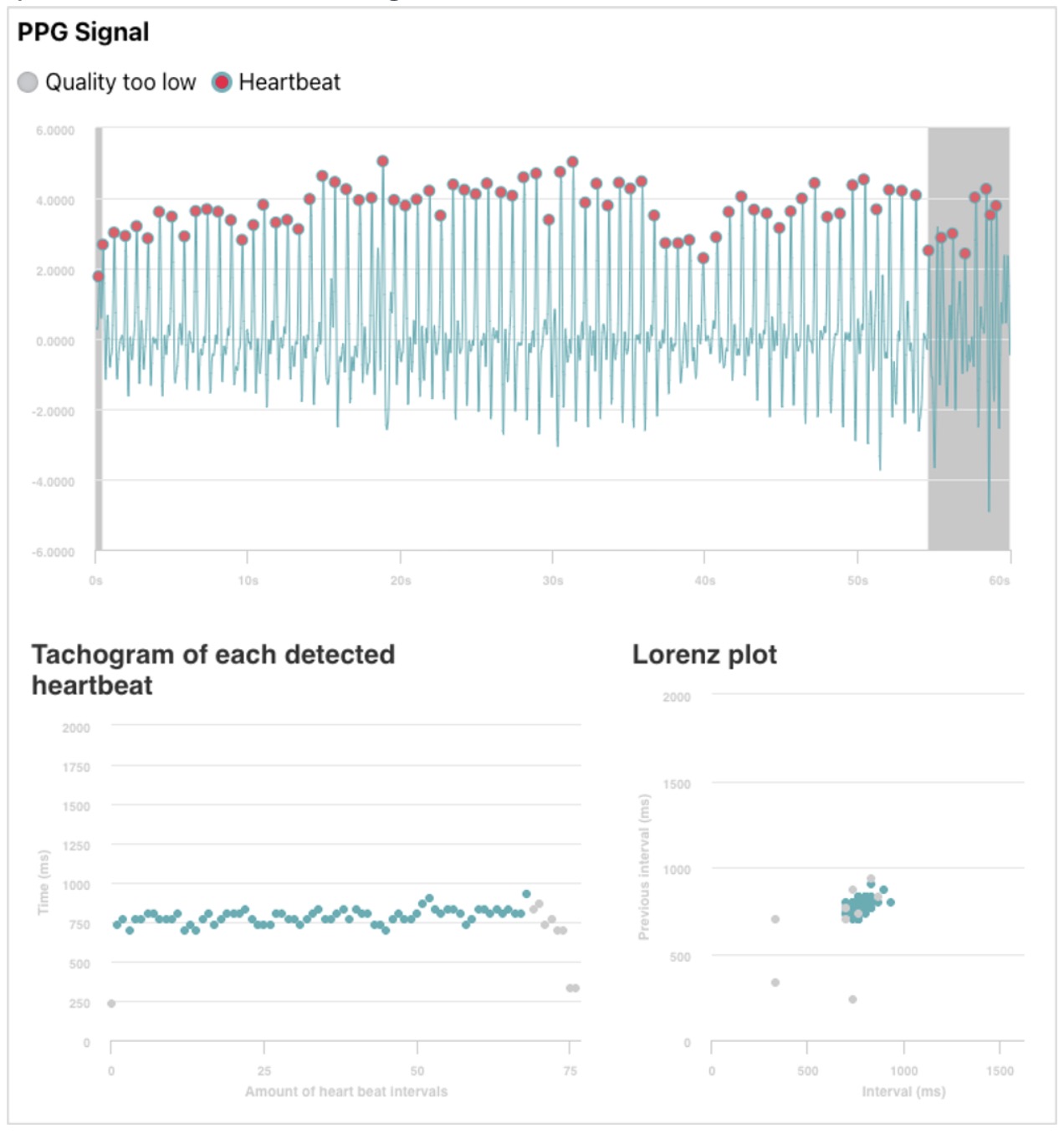
Next to the measurement details containing the above information, three graphs are shown in the FibriCheck Portal. These graphs are displayed to help you interpret the data and support your clinical decision making.
# 5.3.1 PPG signal
The first graph shows the PPG signal, recorded with the FibriCheck Mobile Application, in a standardized and normalized way. The red dots indicate distinct peaks of the PPG signal that are recognized as heart beats by FibriCheck’s algorithm.
The signal quality is deemed sufficient when the peaks are clearly distinguishable. Conversely, a noisy signal with erratic peaks may indicate insufficient quality, which is not suitable for accurate interpretation. Low-quality peaks are marked as gray zones by the FibriCheck algorithm. These zones should not be taken into account when interpreting the PPG signal.
# 5.3.2 Tachogram and Lorenz plot
The tachogram displays each beat-to-beat interval, with the index number of each interval on the x-axis and the beat-to-beat interval in milliseconds on the y-axis. This graphical representation offers time-resolved information, focussing on beat-to-beat interval variability.
The Lorenz plot offers a cluster-based representation of the heart rhythm. It facilitates a quick understanding of the type of arrhythmia based on distinct cluster patterns. The Lorenz plot is constructed by plotting each beat-to-beat interval against the preceding interval.
A regular heart rhythm is characterized by consistent intervals between the peaks in the raw PPG signal, a tachogram with a steady line lacking significant deviations, and a dense cluster of points in the Lorenz plot. Any deviations from this pattern may be considered potentially irregular, depending on the observed pattern.
# 5.4 Revise measurements
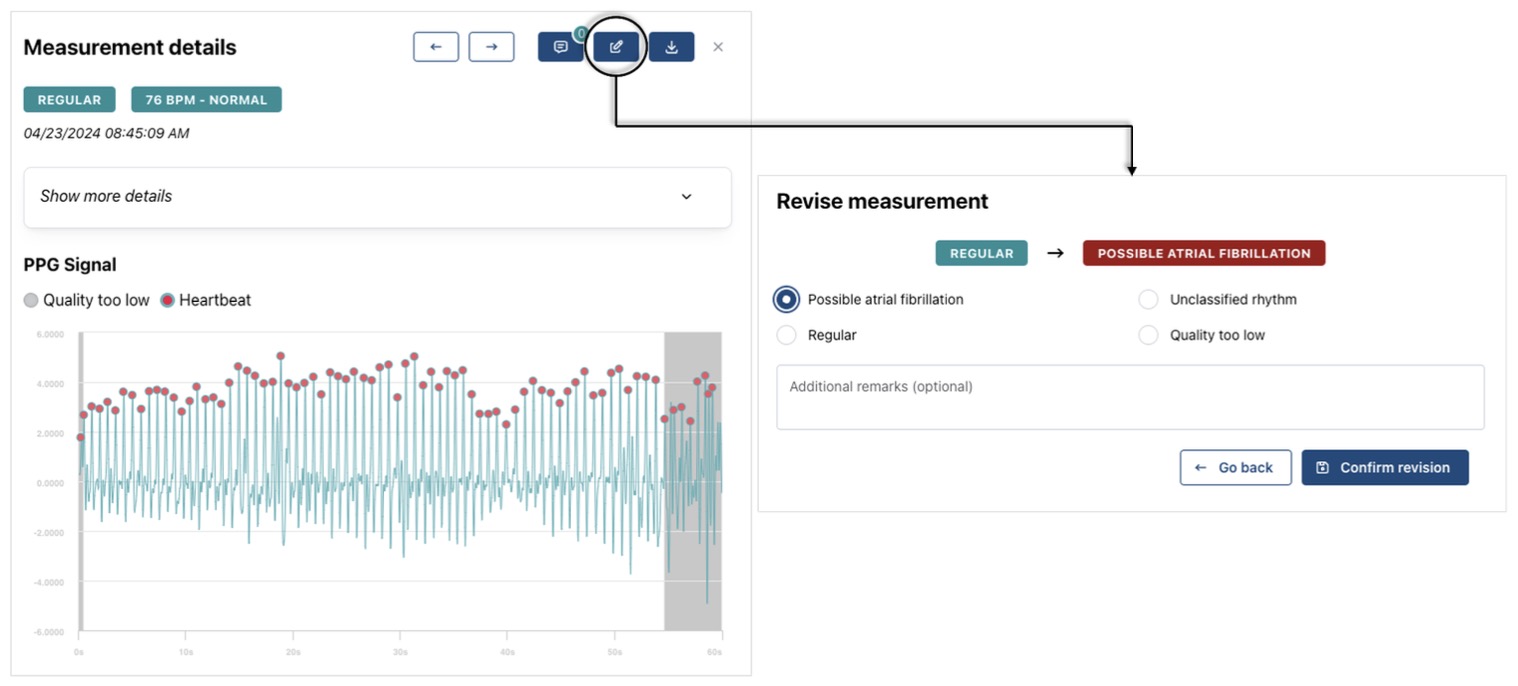
All FibriCheck measurements are analyzed by the FibriCheck algorithm and will undergo a verification by a FibriCheck technician. This will help you to efficiently monitor your patients. You have the ability to revise measurements by clicking the revision icon in the upper right corner of the measurement details screen and changing the heart rhythm label.
# 5.5 Reports
Next to the measurements in the calendar overview, measurement results can also be communicated to you through reports. You can use the FibriCheck Portal to automatically receive reports and/or to manually create reports.
# 5.5.1 Receive reports
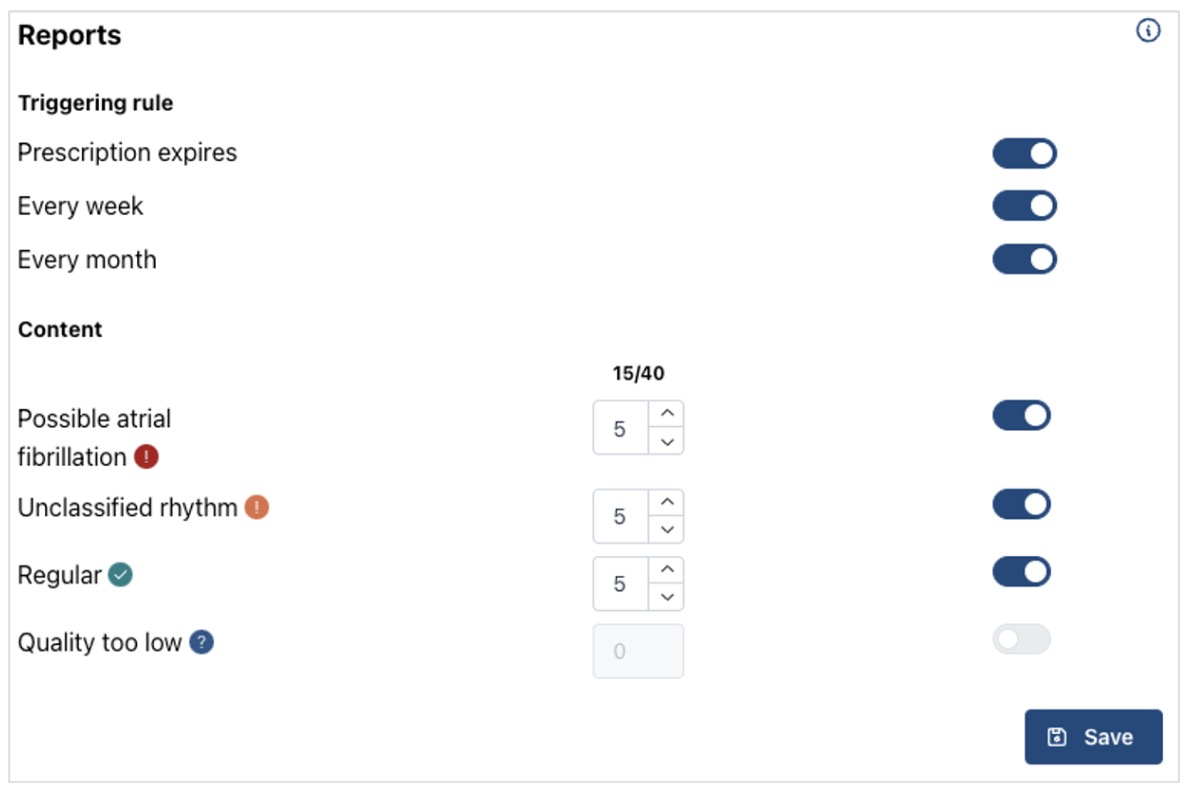
You can personalize how you wish to receive reports in the Group settings page of the FibriCheck Portal. The automatic creation of reports can be triggered by an event (the expiration of a FibriCheck prescription) or on a fixed time interval (every week or every month). A report can include up to 40 measurements in total, which may consist of possible atrial fibrillation, unclassified rhythm, and/or regular measurements.
# 5.5.2 Create reports
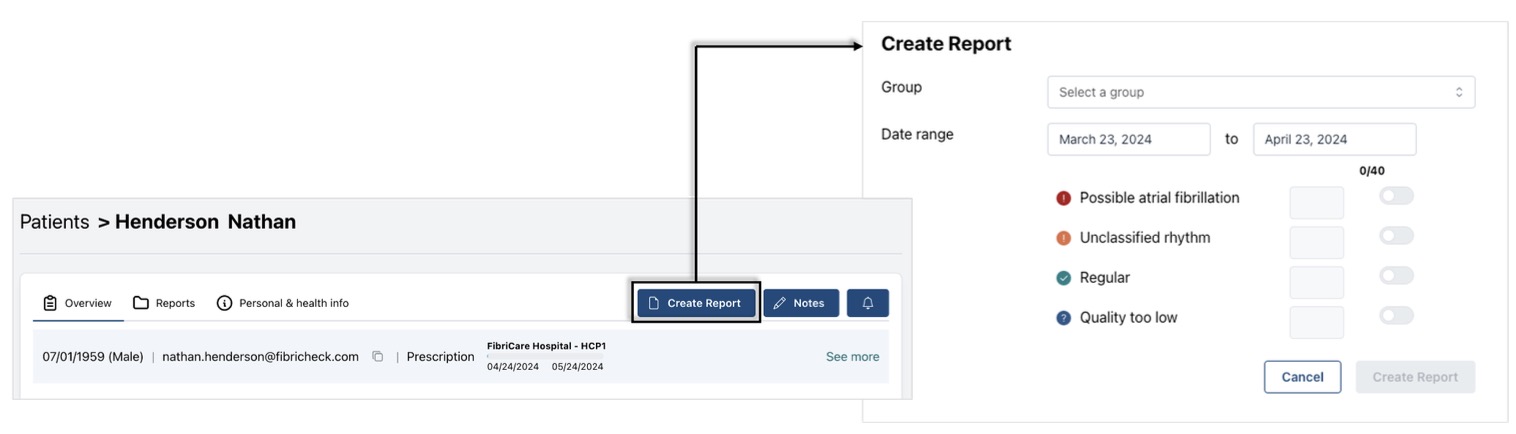
At any given time, you can manually create a report for your patients. Navigate to a patient’s page and click on Create report. You can select a group, a date range and up to 40 measurements in total to be included in the report. Confirm your selection by clicking Create report, the report will download automatically.
# 5.6 Monitoring Rules
The Work List displays triggered notifications for your groups, as configured on Group Settings > Select your group > Monitoring Rules. The Work List also allows for the configuration of Individual notifications, and can be configured via Patient Detail > Monitoring Rules. Using the monitoring rules allows for action-based methods of working.
The following monitoring rule types are available:
- Heart rhythm transition: triggers based on the transition of measurements
- Heart rhythm measurements: triggers when heart rhythm indicators change from one state to another
- Measurement inactivity: triggers when expected physiological parameters are not recorded
- Heart rhythm note: triggers when a user adds a first note to a heart rhythm measurement
- Summary report generated: triggers when a summary report has been generated
- Time since prescription: triggers when a specified amount of time has passed since the last active prescription
In the work list overview, click on the checkmark icon to acknowledge a notification. You can also select multiple items and acknowledge them simultaneously. Click on the report icon to see the details - for example, the PDF report or to open the corresponding measurement. Click on the notebook icon to leave a comment. Acknowledged notifications will disappear from the standard view. To show these, filter on acknowledged notifications. From here, their status can also be reverted.
# 5.7 FUSDR Patients
When patients have an incompatible smartphone device, they can enroll in the FibriCheck United States Data Registry study. The purpose of this study is to evaluate the real-world performance of the FibriCheck AI Algorithm. By enrolling in this study the FibriCheck Mobile Application can be used on incompatible devices.
The patient can easily enroll in the study and give their informed consent through the FibriCheck Mobile Application.
In the portal, you can easily see that a patient is enrolled in the FUSDR study when navigating to the patient detail.
# 5.8 Clinical Logging
You can add clinical logs to a patient's record to include information about treatments or diagnoses they received that were not recorded by the FibriCheck Mobile Application. To add a log:
- Go to the 'Heart rate and rhythm' section of the patient detail
- Scroll down to the 'Logs' section
- Click the '+ Add Log' button to add a diagnosis or treatment log
- Added logs become visible as vertical lines on the indicators graph.
# 6 NAVIGATION
# 6.1 Sidebar
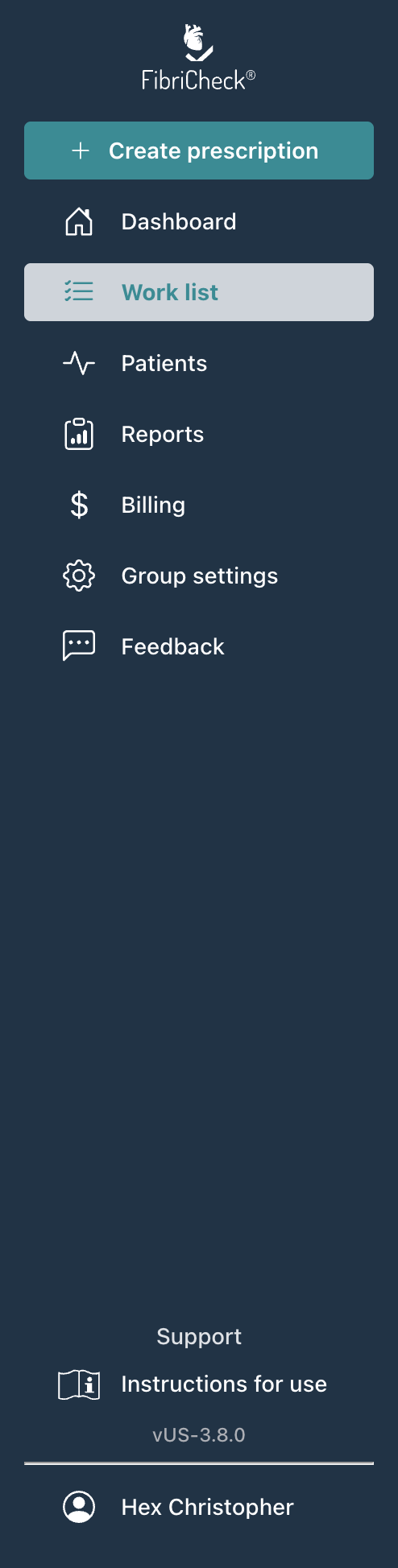
The collapsible sidebar on the left side of the FibriCheck Portal contains buttons to perform actions or to navigate to the different pages:
- Click on + Create Prescription to generate a new FibriCheck prescription.
- Click on Dashboard to see an overview of the measurements that your patients performed in the last 30 days per category, the total number of patients in your FibriCheck Portal and the total number of active patients.
- Click on Work List to see an overview of the notifications that were triggered.
- Click on Patients to see a list of all the patients that are enrolled in your FibriCheck Portal.
- Click on Reports to see a list of all the reports that were automatically or manually created.
- Click on Billing to see a list of billing records that were created.
- Click on Group settings to see the groups that are created for you in the FibriCheck Portal.
- Click on Feedback if you wish to share your thoughts on our device.
- Click on Instructions for use or FAQ to navigate to our support pages.
- At the bottom of the sidebar you will see your name. Click on it so navigate to your personal page.
# 6.2 Dashboard
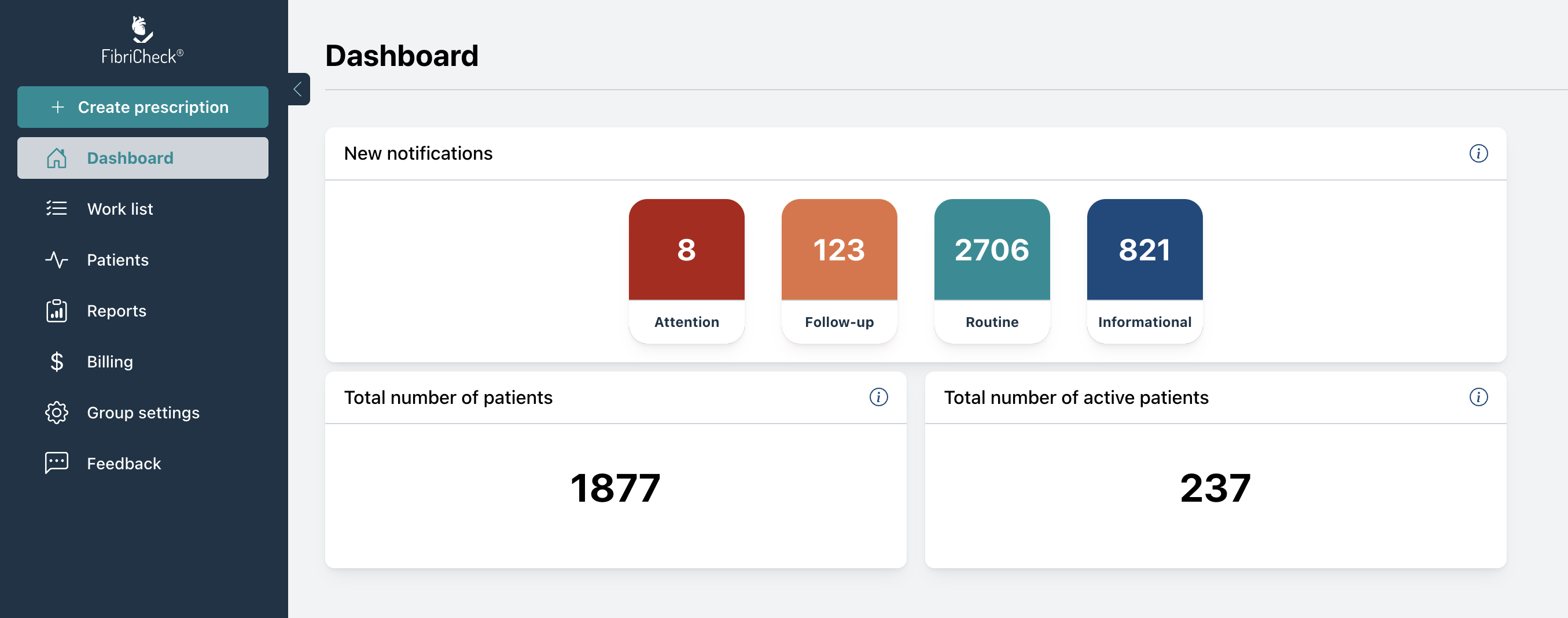
The dashboard of the FibriCheck Portal shows you a few useful statistics. The widget at the top displays a distribution of all measurements performed during the last 30 days by your patients across the different heart rhythm labels.
The widget in the lower left corner counts all your patients, across all groups of which you are staff. It does not take into account whether the patients have an active or expired prescription. Click on the number to navigate to the patient list.
The widget in the lower right corner displays all your patients with an active prescription, across all groups of which you are staff. Click on the number to navigate to a list with active patients.
# 6.3 Patients
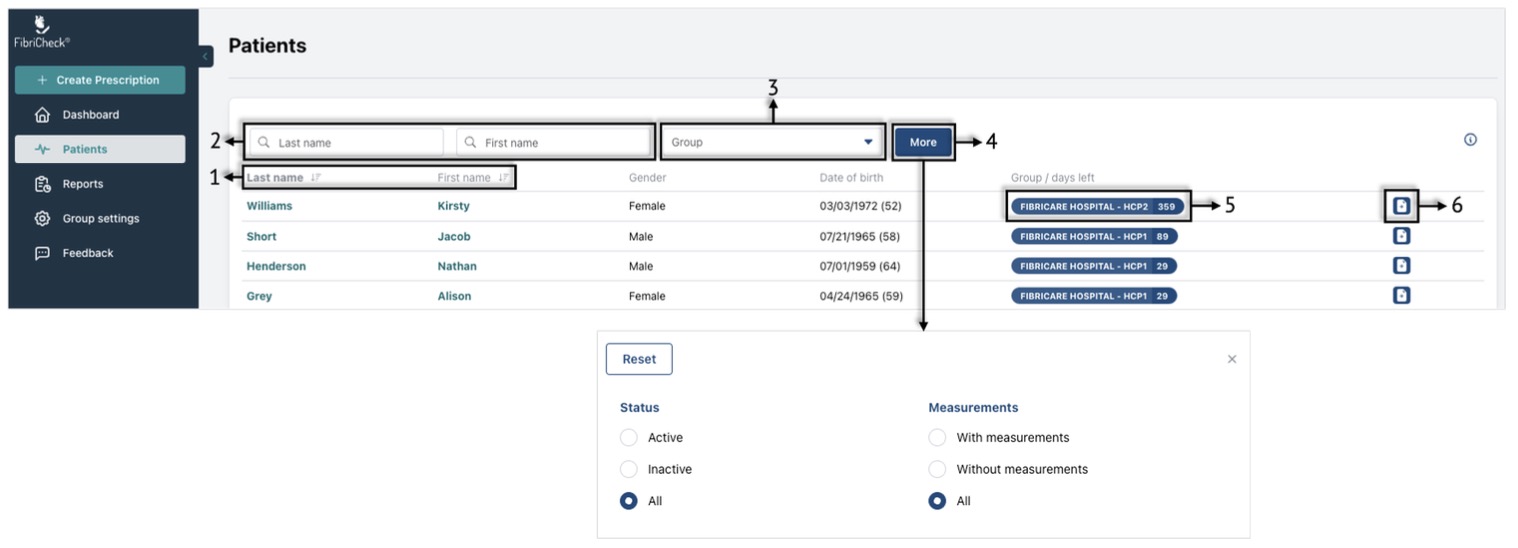
The Patients page provides an overview of the patients that you are monitoring with the FibriCheck Mobile Application. You can navigate through the information and perform several actions:
- Change the alphabetical order of the list by clicking on Last name or First name.
- Search for a specific patient by typing their Last name or First name.
- Filter on Group.
- Click on More to use more filter options. You can filter on prescription status and on whether your patient has already performed measurements.
Next to basic user information, the patient list also shows the following information:
- Last measurement - the timestamp of the last measurement performed by the patient, together with the indicator color
- Last most severe measurement - the timestamp of the latest most severe measurement, together with the indicator color
The last column of the Patients page displays the group in which the patient is currently active (blue) or has been active last (gray). The number indicates the amount of days until the prescription expires.
Click on the + icon to create a new prescription for your patient.
If there is an active prescription linked to the patient, you can click the x icon to deactivate the prescription(s) linked to the patient.
# 6.4 Reports
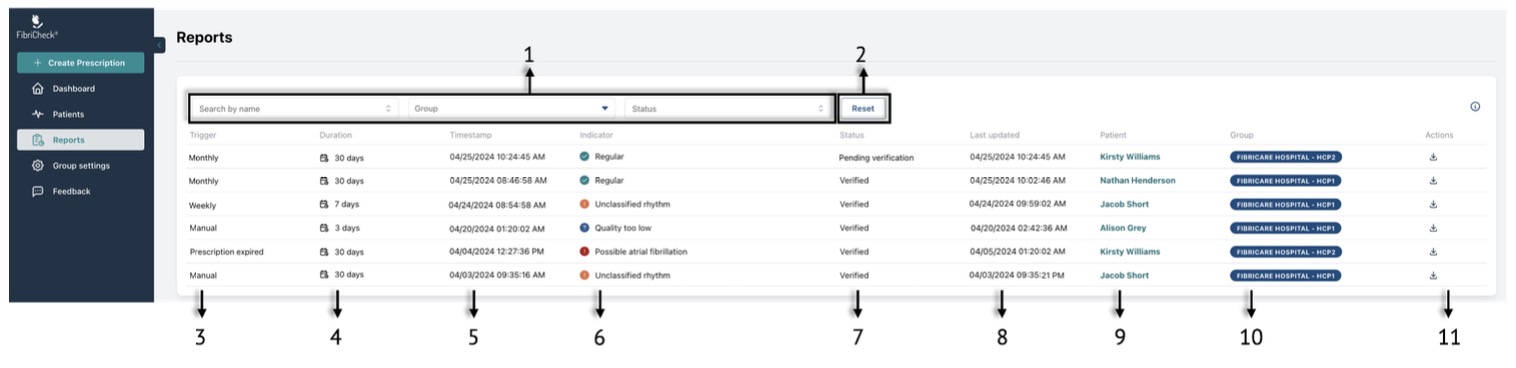
This page shows a list of all your patient’s reports. By default, the list is sorted to show the most recent report first. You can navigate through the information:
- Find a specific report by searching on a patient’s name, filtering on a group or status.
- Click on Reset to go back to the default view.
- In the Trigger column you can see what the trigger was for the creation of the report. This might be because a prescription expired, because a week or month has passed, or because you created the report manually.
- The Duration column displays the amount of days that the report covers.
- The Timestamp is the date and time on which the report was created.
- The Indicator displays the most serious measurement result in the report. In order of seriousness, this might be Possible atrial fibrillation, Unclassified rhythm, Regular or Quality too low.
- The Status column indicates the status of a report. A report will contain measurements that have at least been analyzed by the FibriCheck Algorithm. It might be possible that a report is triggered before a FibriCheck technician was able to verify the results. Until then, the status is Pending verification. When all the measurements in the report are verified, the status changes to Verified.
- The Patient to which the report belongs.
- The Group to which the patient belongs.
- Click on the Download icon to download the report.
NOTE: An indicator result will only be displayed once the report has been verified by a FibriCheck technician. Until then, the indicator will display ‘No result’.
NOTE: The status also takes into account revisions that you may have performed. Your revision of measurements will also be updated in the report.
When a measurement report receives an update that might be triggered by the verification or revision of measurements, the Last updated column will indicate on what date and time this happened.
# 6.5 Group settings
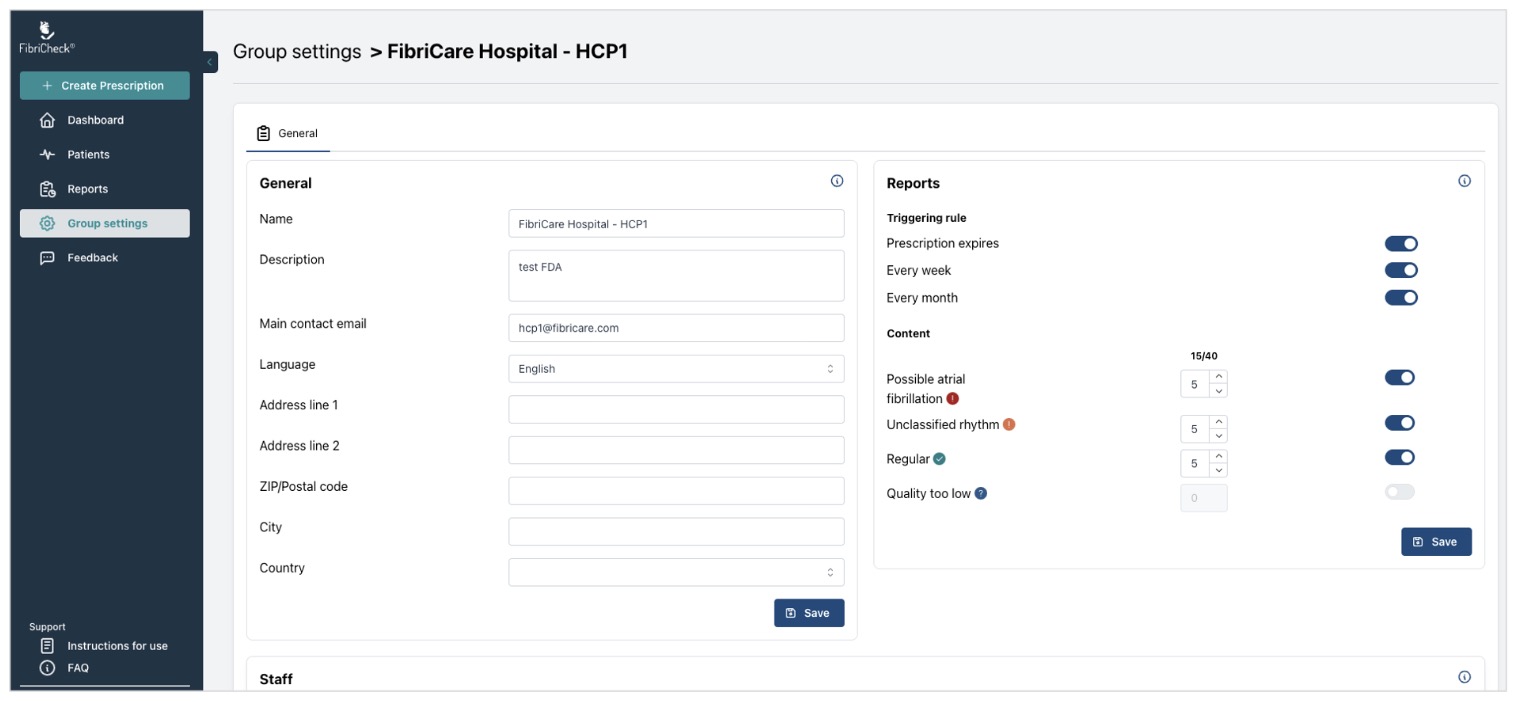
In the Group settings page you can view and change the information of your group and customize the way reports are created. If you wish to add staff members or create a new group, contact support@fibricheck.com.
# 6.6 Personal profile
Click on your name in the lower left corner to navigate to your personal profile.
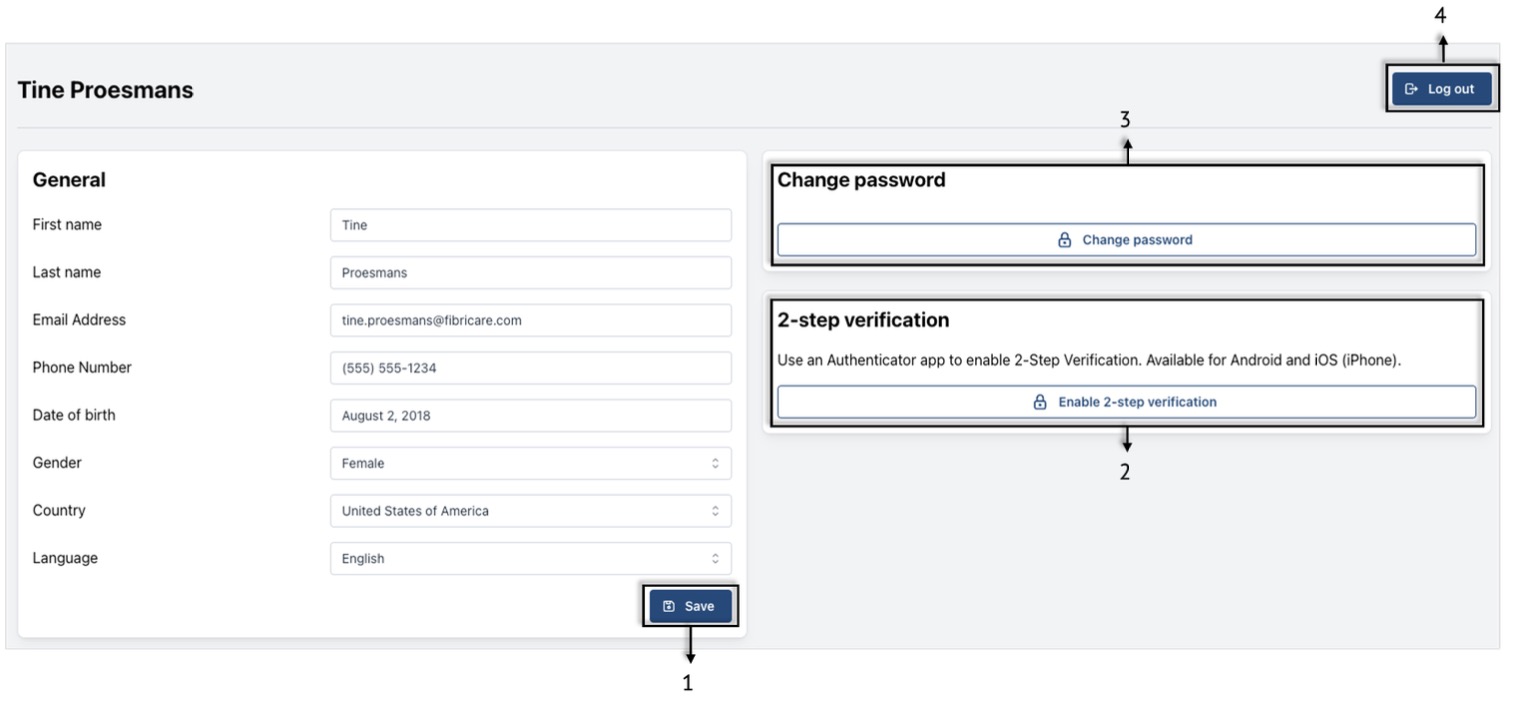
On this page, you can:
- Change your General information, click on Save to confirm the changes.
- Secure your FibriCheck Portal by enabling 2-step verification.
- Click on Change password to choose a new password.
- Click on Log out to log out of the FibriCheck Portal. When you come back, you will need to log in with your credentials.
# 6.7 Help
There is a Help button in the lower right corner of every page of the FibriCheck Portal. Our Customer Support Team is ready to assist you.
# 7 RENEWAL AND DISPOSAL
# 7.1 FibriCheck prescriptions
You can prescribe the FibriCheck Mobile Application to monitor your patients for 7, 14, 30, 90 or 360 days. You can easily see the prescription status on the Patients page. Alternatively, click on a patient’s page to see the duration of their prescription.

To create a new FibriCheck prescription, you can either click on + Create Prescription in the sidebar of the FibriCheck Portal or click on the + icon on the Patients page.
# 7.2 Delete your account
If you wish to delete your FibriCheck account, contact support@fibricheck.com.
# 7.3 When your patient deletes their account
Your patient can delete their FibriCheck account in the FibriCheck Mobile Application. This action will delete all their personal data on their smartphone device.
NOTE: You will still have access to your patient’s measurement data in the FibriCheck Portal after they deleted their FibriCheck account.
# 8 CYBERSECURITY
FibriCheck uses industry-standard encryption protocols to secure all products and data in transfer and at rest. Continuous backups are in place to safeguard data in case of adverse events.
All data exchanged between the FibriCheck Mobile Application, the FibriCheck Cloud, and the FibriCheck Portal is securely transmitted over HTTPS interfaces using TLS versions 1.2 and 1.3, ensuring comprehensive end-to-end security.
The FibriCheck Portal is a web application accessible via browsers and requires an active internet connection to operate. Updates to the portal are delivered instantaneously and do not require any action from the end-user to implement.
To ensure safe and secure use of FibriCheck and the Personal Health Information (PII) data it processes, it is important that end-users follow the guidelines below:
- Do not share your FibriCheck credentials.
- It is strongly recommended to enable 2-step verification (MFA) for all user accounts.
- Only navigate to the FibriCheck Portal through supported browsers.
- Keep your browser and operating system software up-to-date.
Should you have any security concerns, please reach out to us at incidents@fibricheck.com. We are dedicated to responding to your message within 72 hours with additional information on how to share your findings securely with us, and commit to resolving the issue promptly and effectively. We ask that you do not publicly disclose the issue until it has been addressed and a mutual disclosure time has been agreed upon.
# 9. APPLICABLE SYMBOLS
| Symbol | Description |
|---|---|
 | Indicates that the mobile application is a medical device. |
 | The FibriCheck Mobile Application is only available on prescription from a healthcare provider. |
 | Indicates that an electronic instructions for use can be consulted. |
 | The details of the manufacturer of the medical device, including the data of the release of the application. |
# 10 CONTACT DETAILS
Serious incidents that have occurred in relation to the device shall be reported to the legal manufacturer via support@fibricheck.com, the local authorized representative or the local competent authority.
# 10.1 Legal manufacturer
Qompium nv Kempische Steenweg 303/27 3500 Hasselt Belgium
# 10.2 Authorized representative
Qserve Group
350 S Main St suite 309
Doylestown, PA US 18901
usagent@qservegroup.com